Azure Groups
What Is the Azure Group Feature?
The Azure Group feature enables organizations to seamlessly import groups and their associated users from Azure Active Directory (AAD) in bulk, making it easy to build and maintain an employee directory directly on your station. Rather than manually entering each employee, you can leverage your existing Azure infrastructure to populate your directory automatically.
This feature is especially useful for companies already using Microsoft 365 and MS Teams, as it integrates directly with your Azure environment. Once connected, you can sync your Azure groups with a single click, ensuring your station's employee directory always reflects the most current organizational data.
Before using Azure Groups, you must complete the MS Teams integration setup. After that, enabling Azure integration and importing groups becomes a straightforward process that keeps your directory aligned with your Azure Active Directory at all times.
How to Set Up and Sync Azure Groups
The Azure Group feature allows you to import groups and their users from your Azure Active Directory (AAD) in bulk and create an employee directory on your station.
Azure groups can be synced with Azure with a single click. To display an employee directory on your station, simply select Azure Group as the action for your station button. To use Azure group you must complete your MS teams integration.
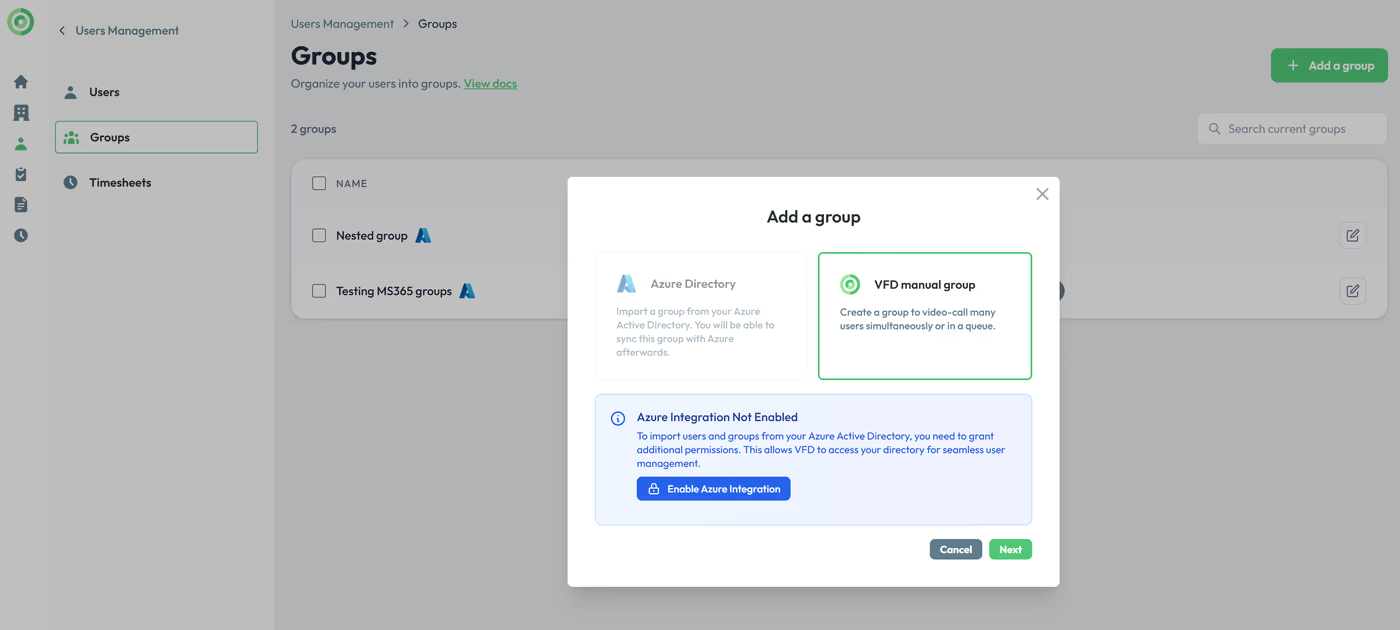
Click Enable Azure integration to provide access.
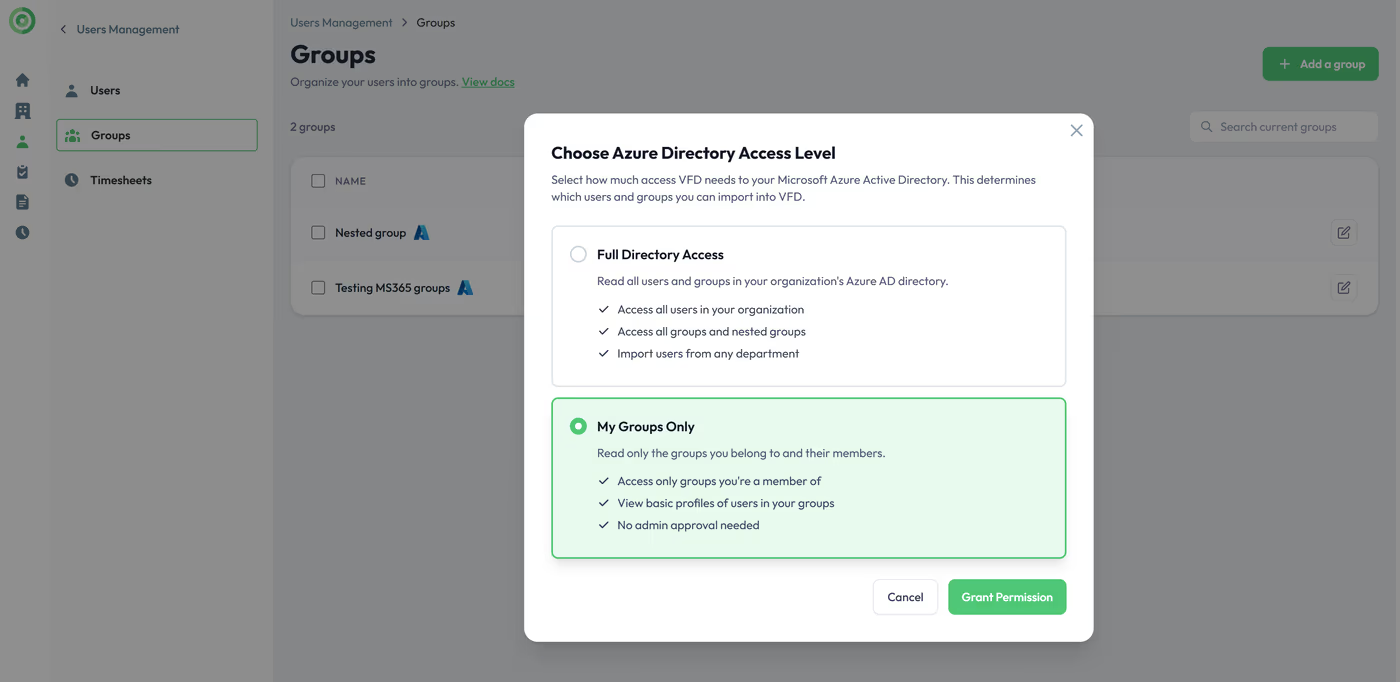
Select between full directory access or your groups only.
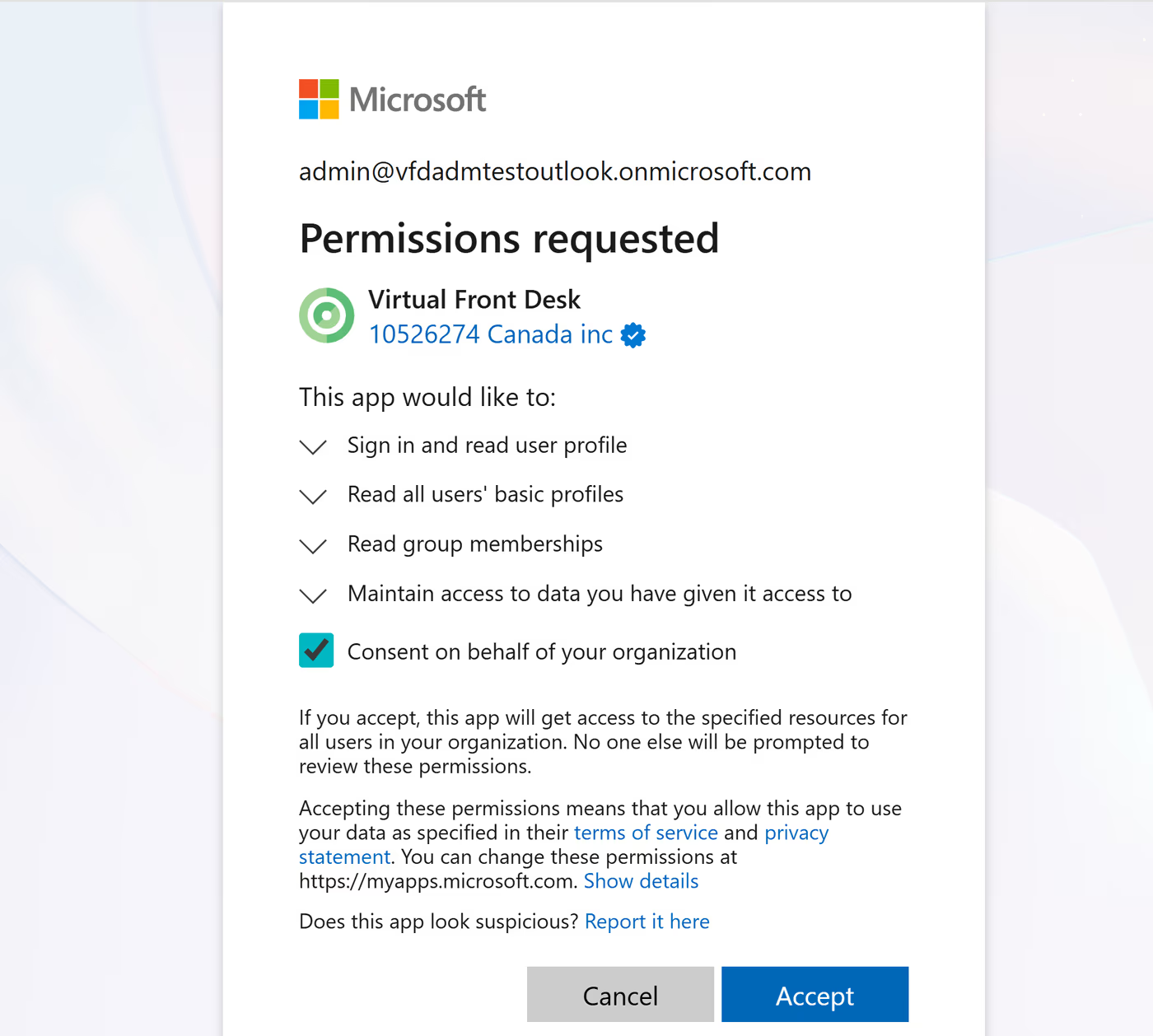
Accept permission request.
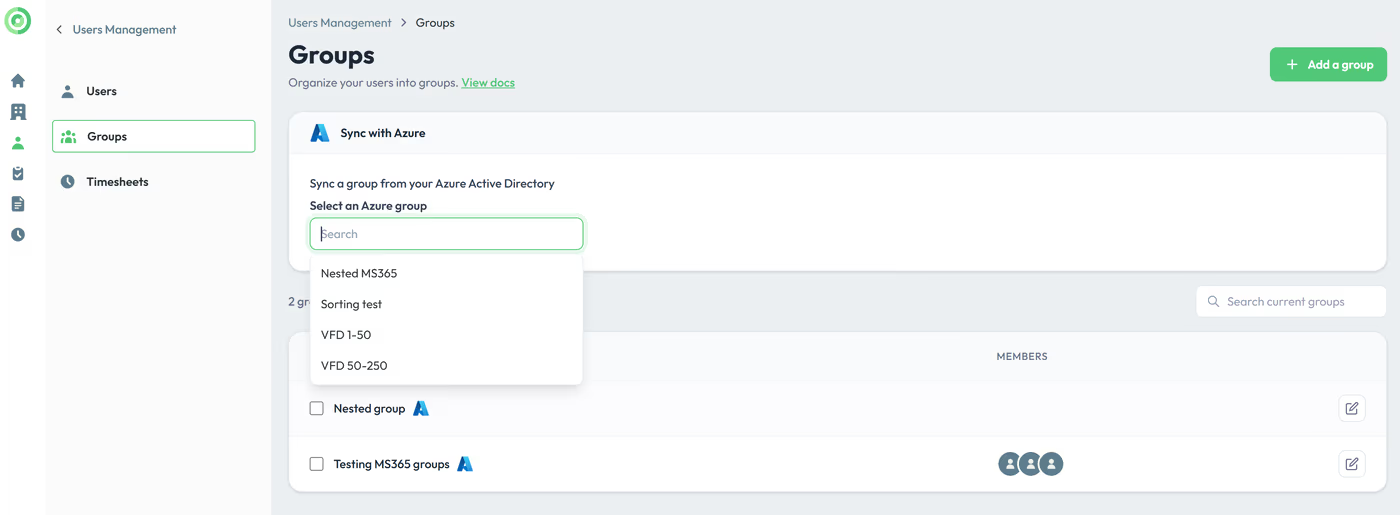
You can then select which group to import.
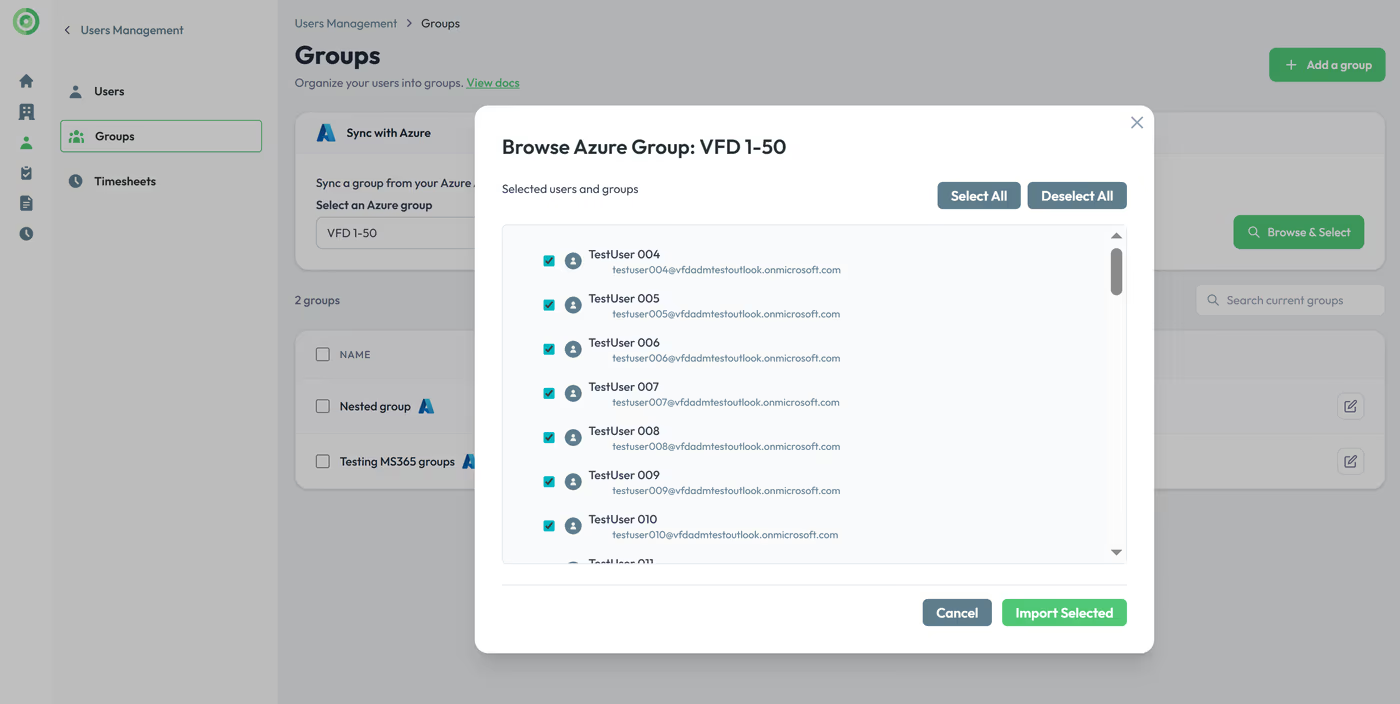
Finalize your selection and import.
If changes are made to your Azure Groups, you can sync those updates anytime by clicking “Azure sync now” in the group’s Edit tab.
Changes will be reflected live after a refresh of your station. Note: When the group sync runs, newly detected users are added to your Users list and the group. Users missing from the source group are removed from this group only; they remain in your Users list because they may be used elsewhere. To remove them entirely, go to the Users section and delete them manually.
*Please note, an Azure group will act like a regular group in a sign in form but the Call Queue option of the group will be switched on by default to avoid conference calling in MS Teams.
Key Takeaways for Azure Group Integration
The Azure Group feature streamlines employee directory management by pulling groups and users directly from Azure Active Directory. To get started, enable the Azure integration, choose between full directory access or access limited to your own groups, accept the permission request, and then select which groups to import. Once imported, you can keep everything up to date by clicking "Azure sync now" in the group's Edit tab whenever changes occur in Azure.
Keep in mind that when a sync runs, newly detected users are added to your Users list and the relevant group, while users removed from the source group are only removed from that group — not from your Users list entirely. To fully remove a user, you must delete them manually from the Users section. Additionally, Azure groups default to having the Call Queue option enabled to prevent unintended conference calls in MS Teams.