Groups and call queue.
Introduction to Groups and Call Routing
Groups in the platform allow you to organize users and configure how incoming video call notifications are distributed across your team. Whether you need to alert all members at once or route calls through a sequential queue, groups give you the flexibility to define exactly how calls are handled at each station.
Beyond standard user groups, you can also configure groups without any users assigned. This setup bypasses video calling entirely and places a direct phone call instead, making it ideal for building submenus with phone-call–only options. Groups can be linked to station buttons to control which users or phone numbers are reached when a visitor interacts with your kiosk.
For organizations using Microsoft Teams, additional options are available, including MS Teams Call Queues and Auto Attendant integration, enabling seamless routing through your existing Teams infrastructure.
How to Create and Configure Groups
Groups
From the User tab, Create groups to send video call notifications to all members simultaneously or route them through a sequential queue (video calls only). If no one responds within 30 seconds, the system can automatically dial the group’s designated phone number, based on your settings. For Azure groups (employee directory), please refer to the Azure Group article.
You can also configure a group without users to bypass video calls entirely and place a phone call directly. This is useful for creating submenus with phone-call–only options. Selecting more than one group will create a submenu on your station.
After saving your group, go to your station and link the group to a button. The button will then call only the users in that group and use the group’s phone number (if assigned).
To create a submenu, attach more than one group to the same button.
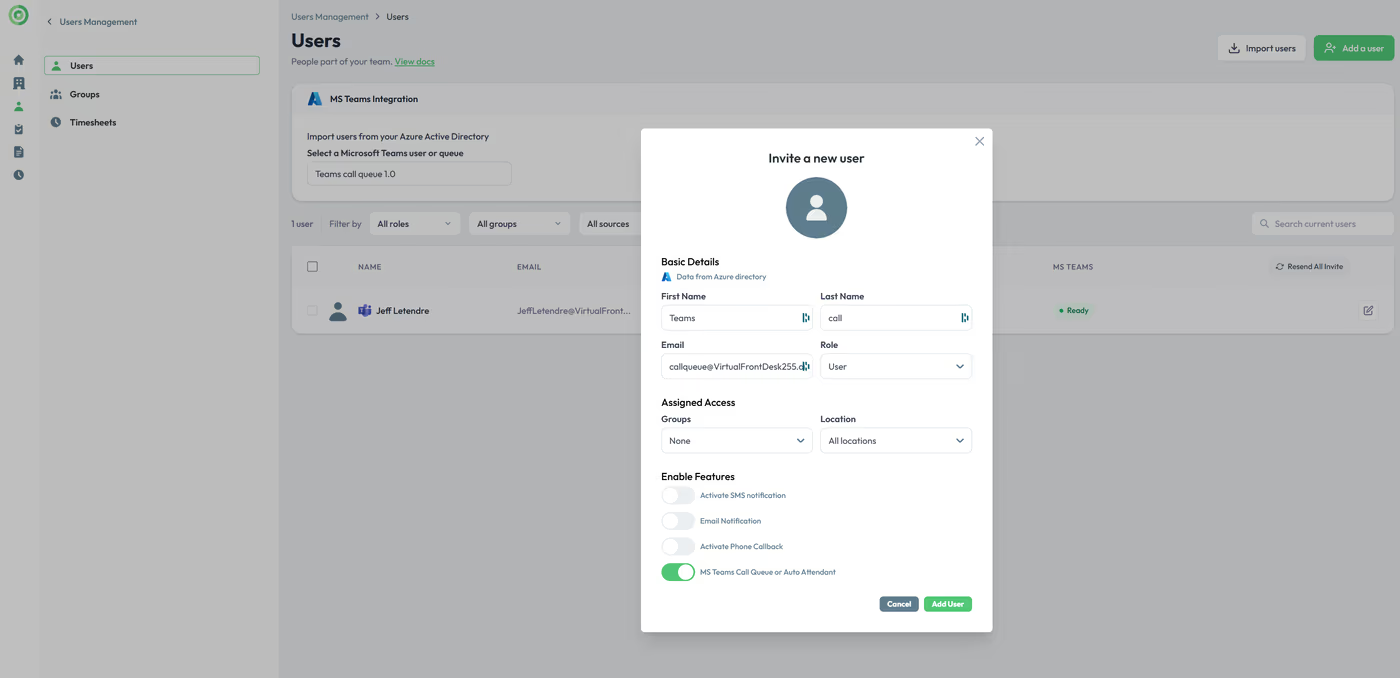
*When creating a group with MS Teams users, group calling is disabled, only the call queue option is available. Alternatively, for even more flexibility you can create the call queue or group within your MS Teams admin account and then import it as a regular user using the Microsoft AAD search box. Enable the "MS Teams Call Queue" option and add as a regular user. From your station, select "User" from the list of actions and select your call queue. Clicking this button will video call into your MS Teams Call Queue.
Using Auto Attendant in Microsoft Teams
To use the Auto Attendant feature, select the Phone Call action. The system will dial the Auto Attendant number automatically. If you need a submenu, create standard groups without users and enter the appropriate phone number for each group. When one of these groups is selected as the action for a button, it will initiate a phone call to the corresponding Auto Attendant number.
Note: This option supports audio (phone) calls only.
Key Takeaways for Group Configuration
Groups are a powerful tool for managing call routing at your stations. You can create user groups for simultaneous or sequential video call notifications, set fallback phone numbers if no one responds within 30 seconds, and build submenus by attaching multiple groups to a single button. Groups with no users can be used to trigger direct phone calls, useful for phone-only submenu options.
For Microsoft Teams environments, you can import Call Queues directly using the Microsoft AAD search box and enable the MS Teams Call Queue option for video call routing. For Auto Attendant use cases, configure a Phone Call action with the appropriate number — keeping in mind this supports audio calls only. Always remember to link your saved group to a station button to activate the configuration.