Settings Menu
Overview of the Settings Menu
The Settings Menu is the central hub for managing your account preferences, communication configurations, and administrative controls within the platform. Whether you are a global admin or an individual user, the Settings Menu provides the tools you need to tailor the system to your specific needs.
From updating your profile and notification preferences to configuring call forwarding and video backgrounds, the Settings Menu covers a wide range of options. Billing management, monitoring capabilities, and advanced integrations such as Microsoft Teams are also accessible from this area.
This article provides a walkthrough of each section within the Settings Menu, explaining what each option does and how it applies to different user roles within your organization.
Navigating the Settings Menu Sections
Settings Menu Profile
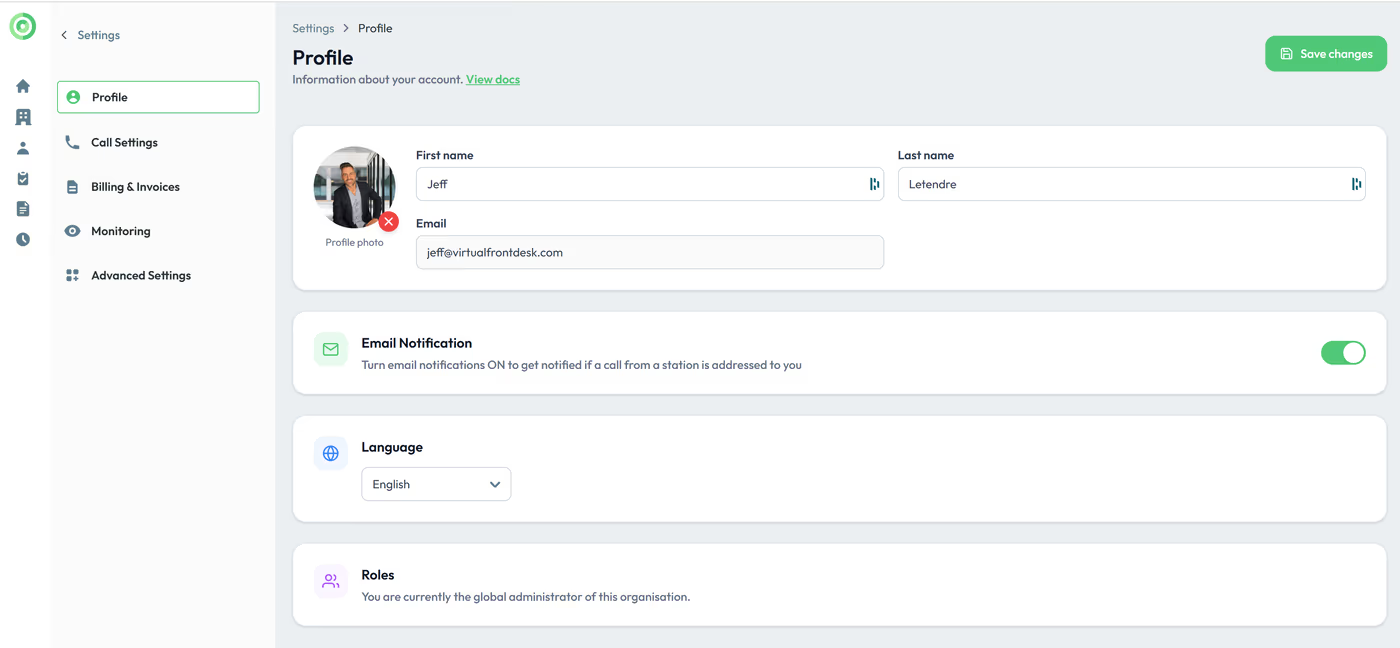
Information about the account, email notification, select the langauge of your dashboard, roles and switch organization. (You can only switch organization if you are not the global admin.)
Call Settings
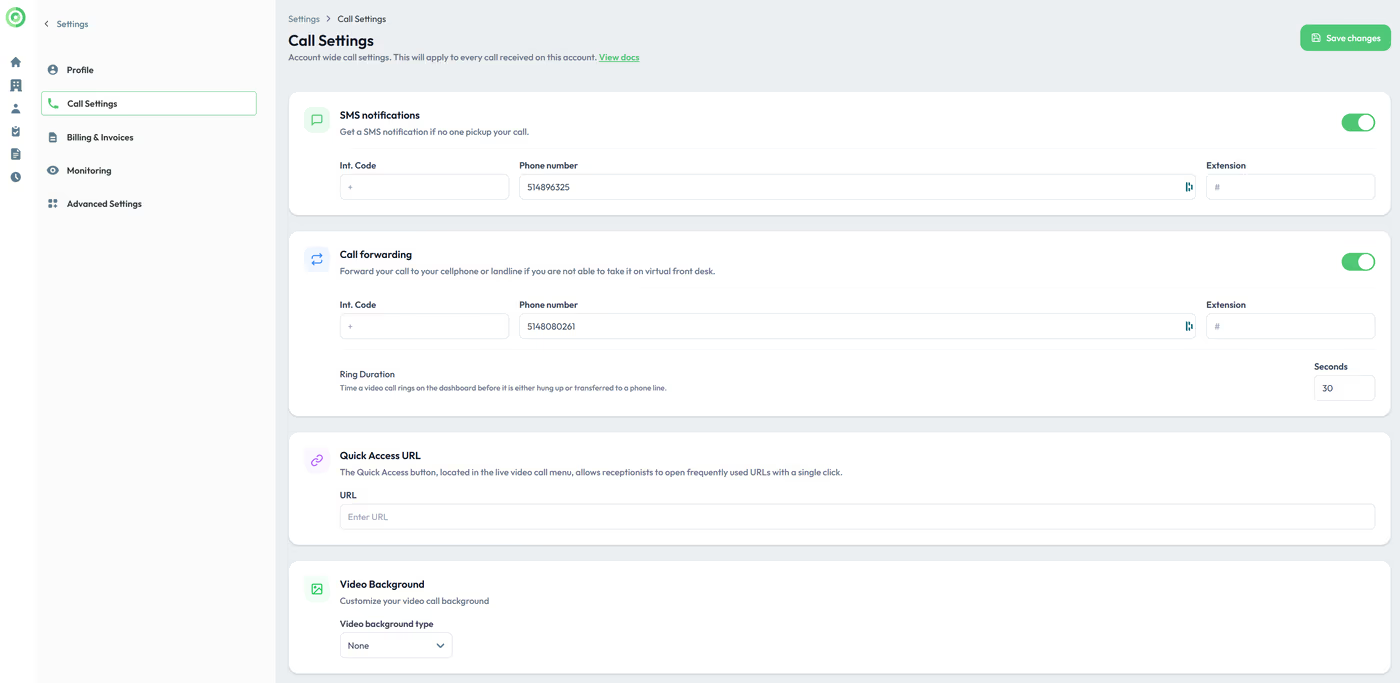
SMS Notifications
This is the default SMS notification setting for the user and applies when the "All Users" option is selected for a button if you are the global admin. Please note that Groups and Individual Users can set their own SMS notification numbers.
Call Forwarding
This is the default call forwarding number for the Global Admin and applies when "All Users" is selected for a button. Groups and Individual Users can also configure their own call forwarding numbers.
Call Forwarding Timeout
Defines the time delay before dialing the call forwarding number when video calls are not answered.
Quick Access
The Quick Access button, located in the live video call menu, allows receptionists to open frequently used URLs with a single click, providing seamless access to essential web tools during a call.
For example, you can quickly open your Square Virtual Terminal to send a payment request to your POS system at the station.
Video Background (Chrome Only)
Allows you to blur or display an image as your background during calls. This feature is supported only in Google Chrome.
Billing & Invoices
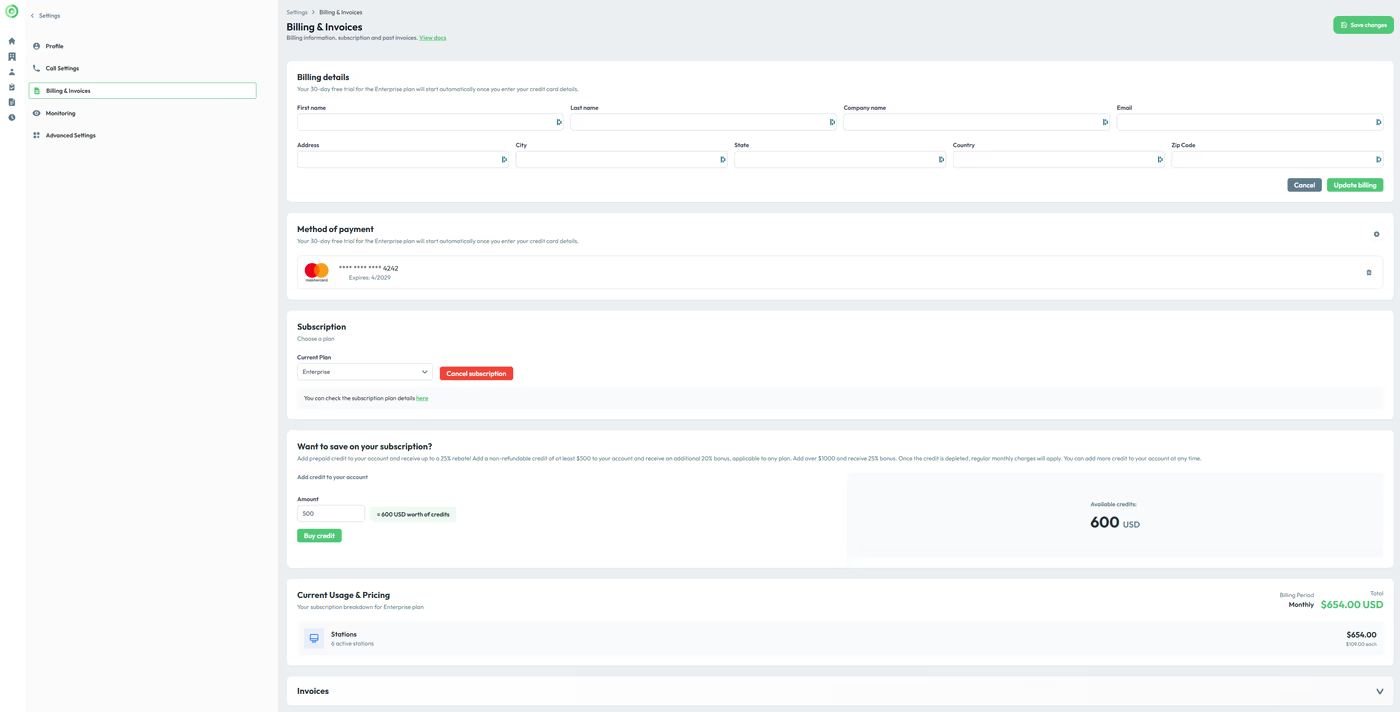
In this section, you can manage your billing details and payment method, select or cancel your subscription, view your invoices, and purchase prepaid credits.
Monitoring
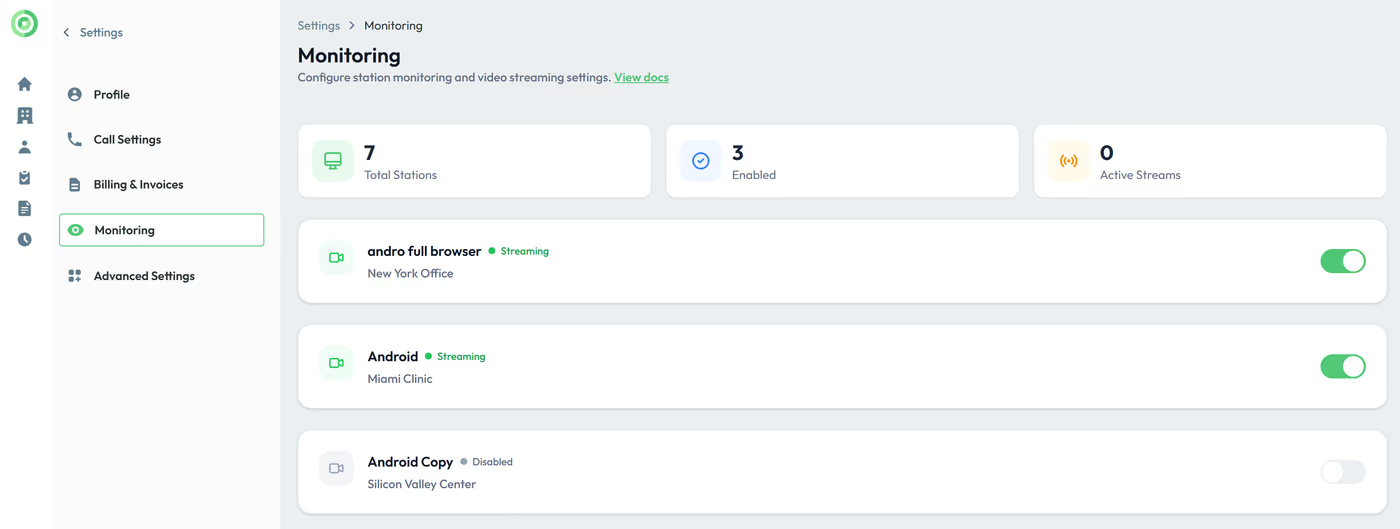
This section allows you to enable the live streaming of your stations.
Advance Settings
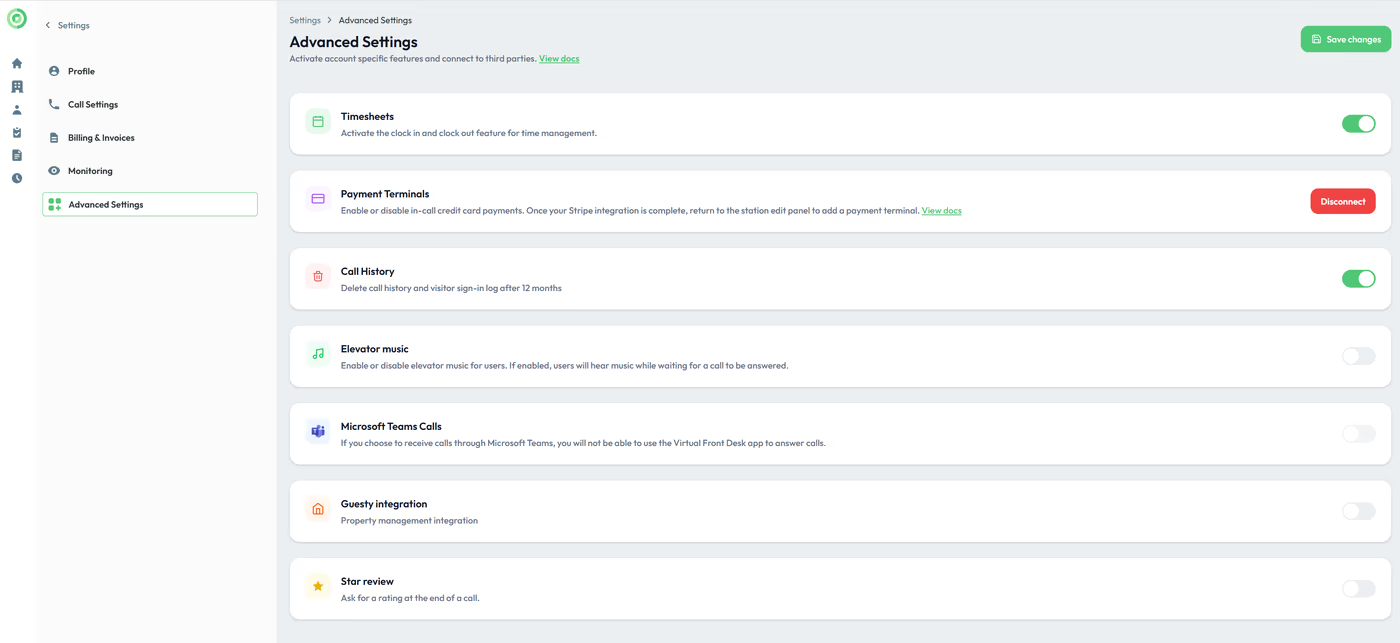
Several options are available in this section. To enable Microsoft Teams, you must sign in using the Microsoft SSO option to unlock and complete the Teams integration.
For Guesty users, PMS properties can be imported in a single click.
Key Takeaways from the Settings Menu
The Settings Menu offers a comprehensive set of tools organized into distinct sections including Profile, Call Settings, Billing & Invoices, Monitoring, and Advanced Settings. Global admins have additional controls, such as default SMS notification numbers and call forwarding settings that apply organization-wide when the "All Users" option is selected for a button.
Individual users and groups can override default communication settings with their own configurations. Advanced features like Microsoft Teams integration require Microsoft SSO sign-in, while tools like Quick Access URLs and video backgrounds help enhance the live call experience for receptionists and agents.