iFrames, URL, Websites and Webapps
Using iFrames with the Virtual Front Desk
The Virtual Front Desk platform supports embedding external content directly into your station interface using iFrames. This allows you to display online fillable forms (such as JotForm), websites, or web applications like Google Calendar alongside your Virtual Front Desk app, creating a seamless experience for visitors and staff alike.
iFrames are a versatile tool that can be configured in several ways: displayed alongside your station as a split screen, triggered via a button click, incorporated into visitor sign-in forms, or even sent to the screen during a live video call. Each method gives you flexibility in how and when embedded content appears to your visitors.
Important: iFrames do not support URL redirections. If the embedded content performs any action that redirects to a different domain or URL, the iFrame will break. Always verify that the website, form, or web application you intend to embed stays within its original domain throughout the user interaction.
How to Configure and Display iFrames on Your Station
iFrames *(No Redirection Allowed)
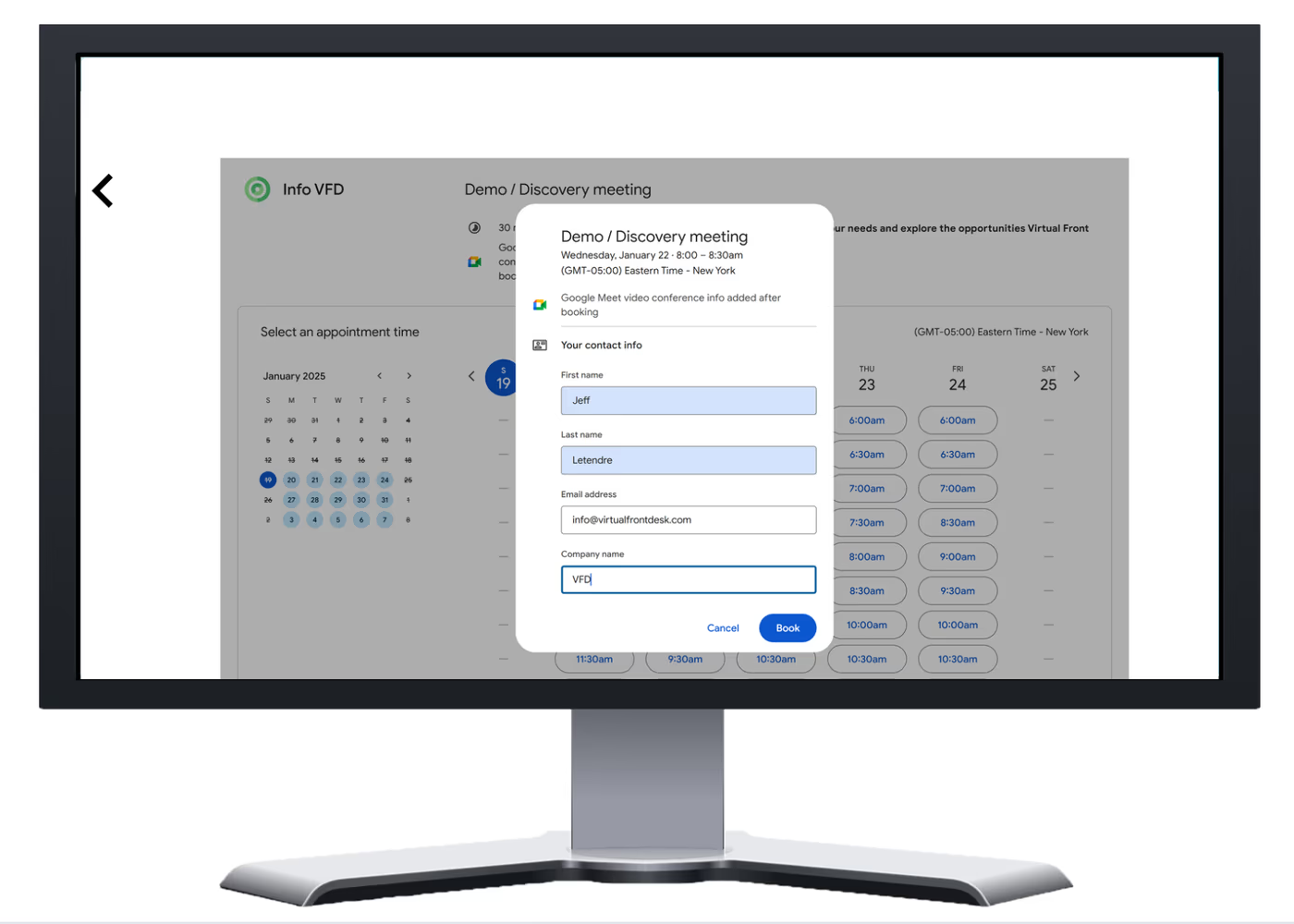
You can display various URLs—such as online fillable forms (e.g., JotForm), websites, or certain web applications like Google Calendar—within an iFrame alongside the Virtual Front Desk app. However, please note that iFrames do not support redirections. If the embedded content includes actions that redirect to a different URL, it will cause the iFrame to break. Therefore, ensure that any website, form, or web app you wish to display within an iFrame does not perform actions that redirect outside of the original domain's URLs.
Displaying iFrames on Your Station and Splitting the Screen:
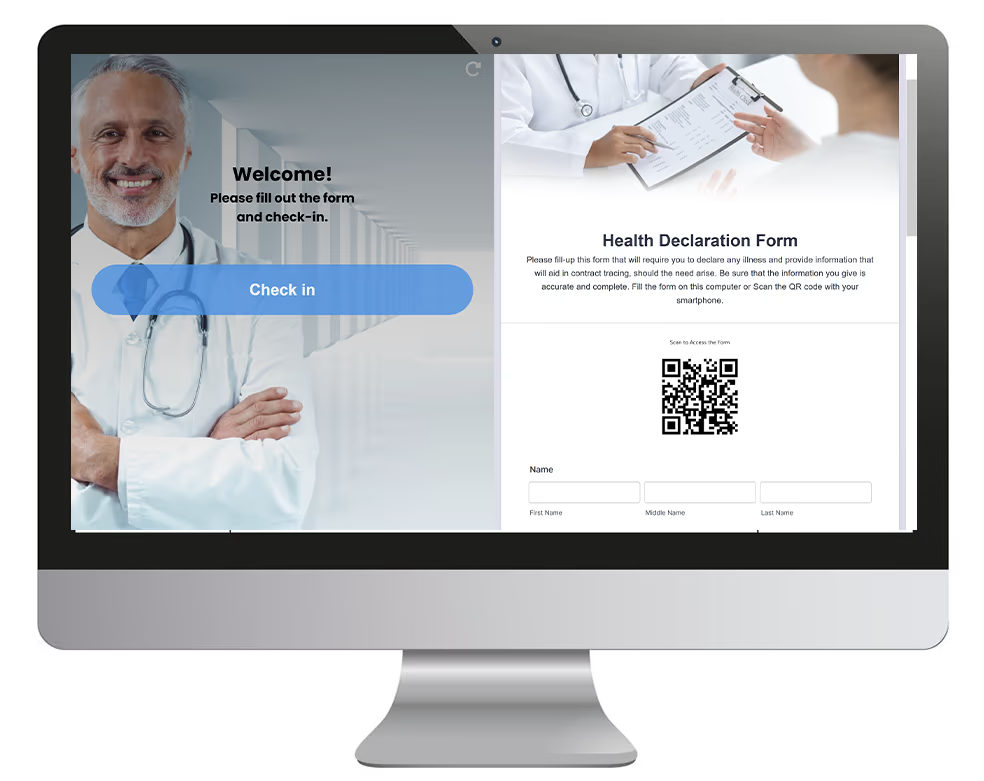
Access the Station's Edit Section:
- Navigate to your station's settings and select the edit option.
Enter the Desired URL:
- In the 'URL iFrame' field, input the URL you wish to display.
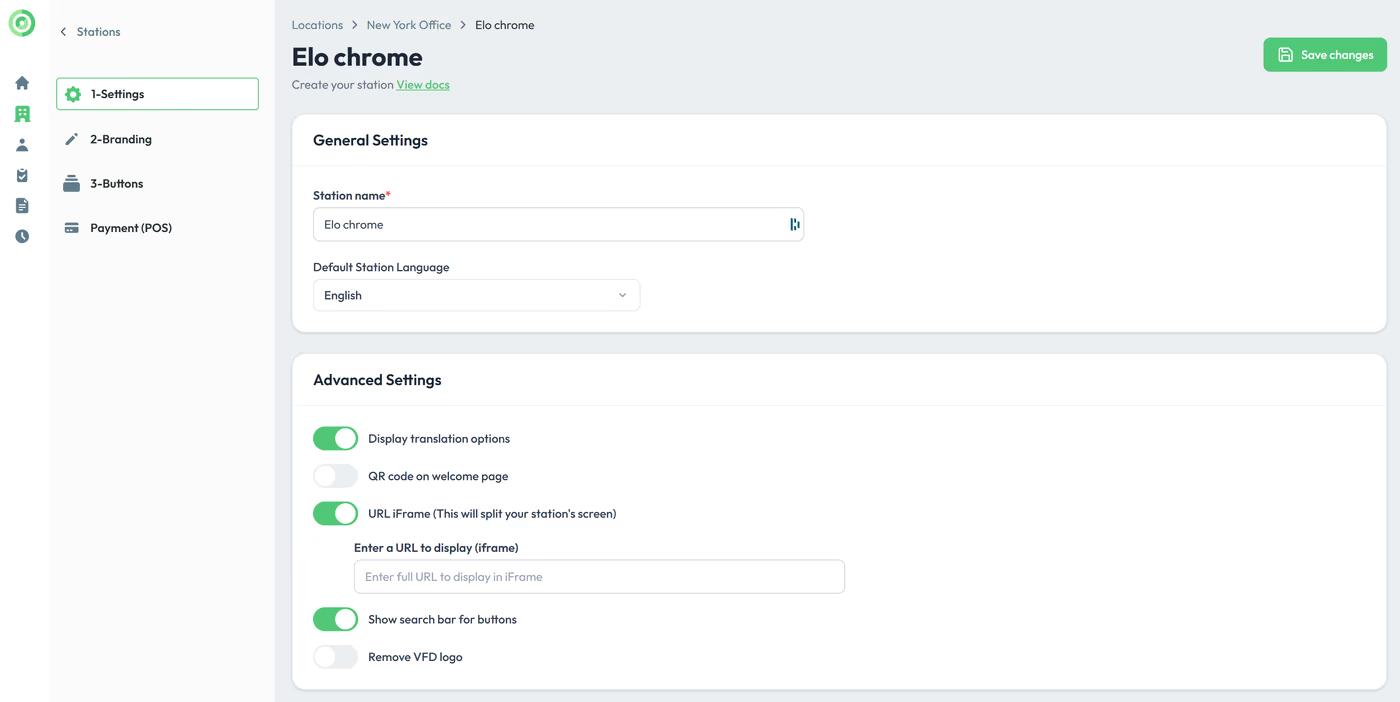
Screen Adjustment:
- This action will split your station's screen.
- You may need to redesign your station's buttons, logo, background, and welcome message to accommodate the reduced screen size.
Displaying an iFrame via a Button Click:
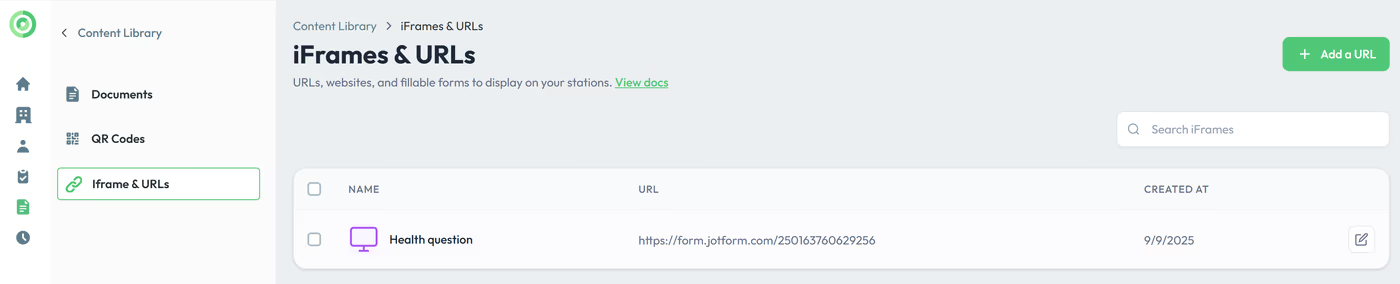
Add the iFrame to the Document Section:
- Go to the document section and add your iFrame.
Configure the Button Action:
- Navigate to your button's action settings and select 'iFrame'.
- In the option details, choose the desired iFrame and save.
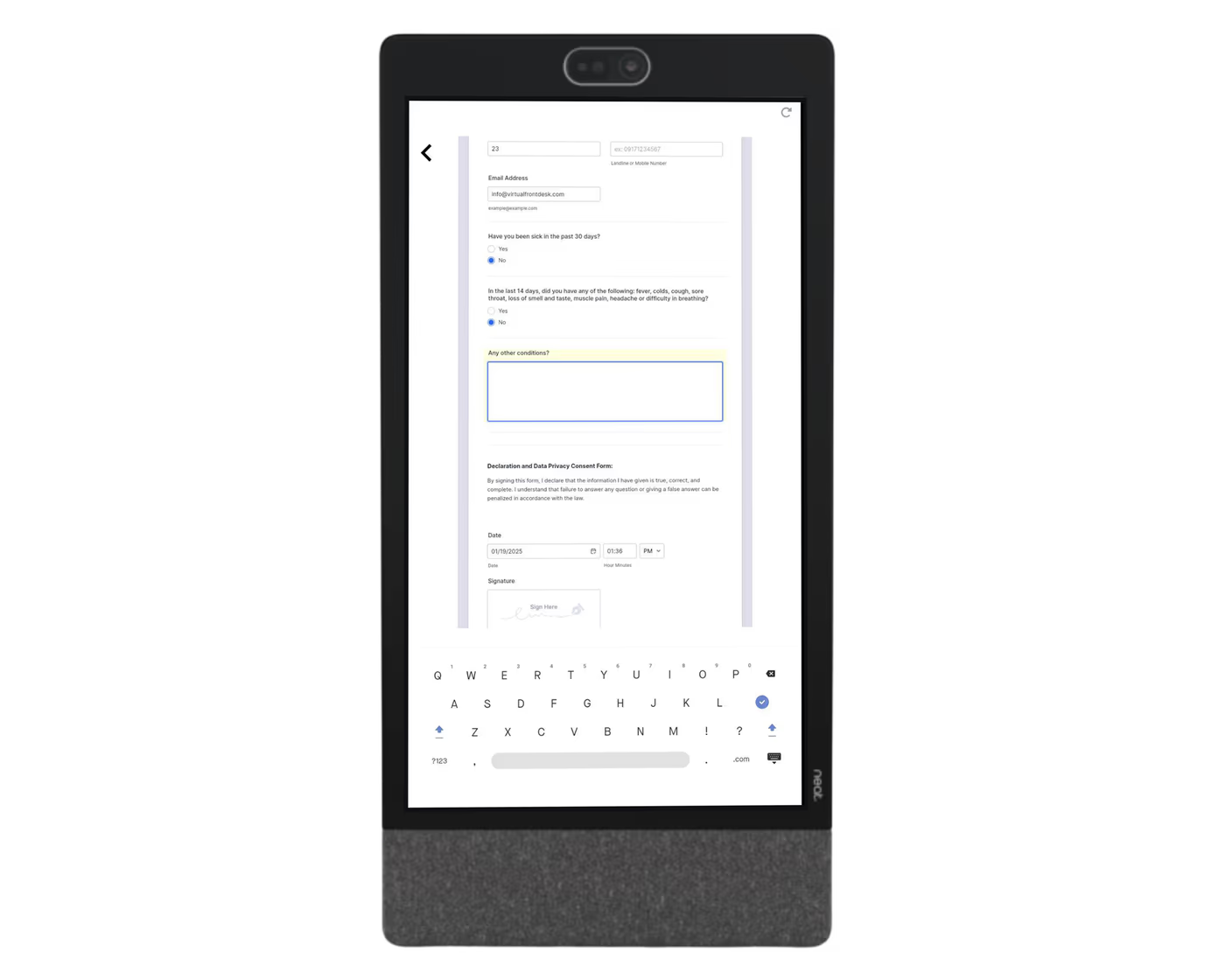
Displaying an iFrame in a Visitor Sign-In Form:
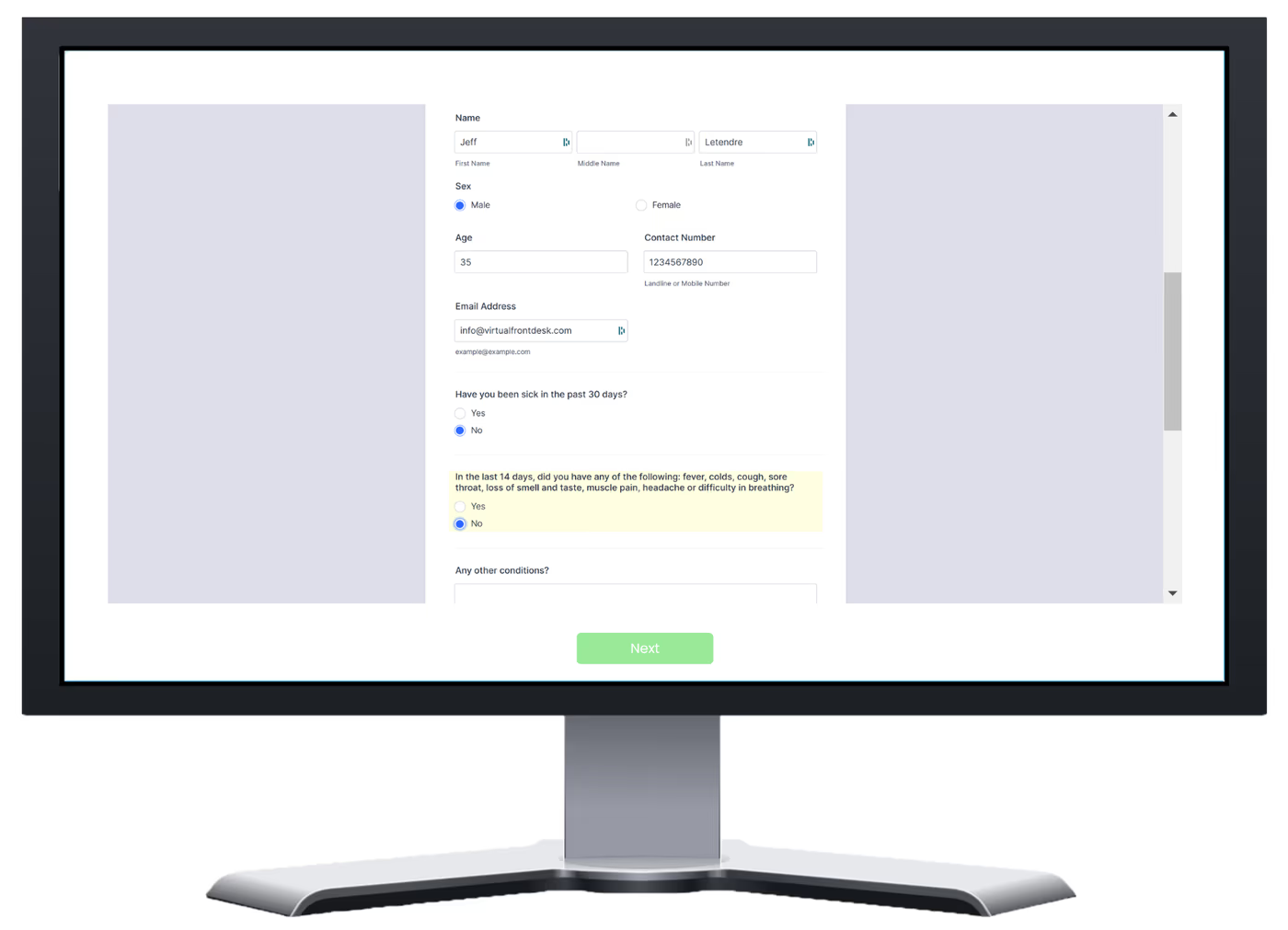
Select the iFrame:
- Go to the Visitor Sign-in section, create a Visitor Sign-In form, under document, select the iFrame.
Sending an iFrame During a Live Video Call:
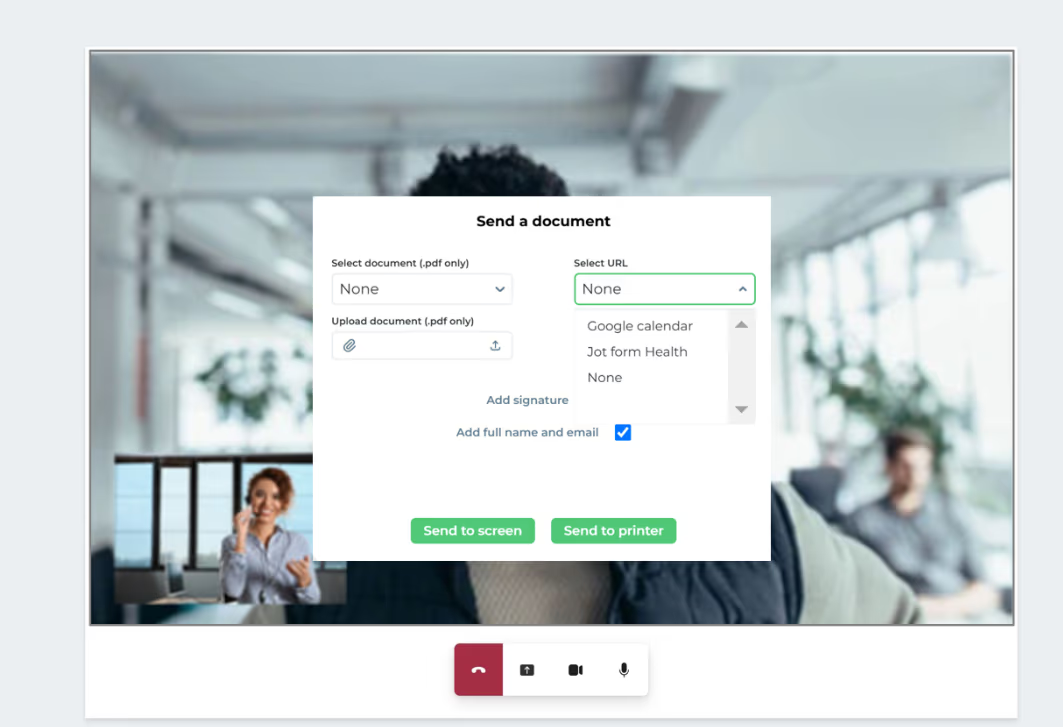
Add the iFrame:
- First, add the iFrame in the document section.
Send iFrame to Screen:
- During the live video call, from the documents options located at the bottom of your screen, select the URL and send to Screen.
Key Takeaways for iFrame Configuration
iFrames offer multiple integration points within the Virtual Front Desk platform, including split-screen station display, button-triggered pop-ups, visitor sign-in forms, and live video call screen sharing. To set them up, you'll use either the station's URL iFrame field, the document section, or button action settings depending on your desired display method.
Always remember that redirections are not supported within iFrames — embedding content that redirects to a different URL will cause the iFrame to break. Plan your station layout accordingly when using split-screen mode, as you may need to resize buttons, logos, backgrounds, and welcome messages to fit the adjusted screen dimensions.