Users
Introduction to User Management
In Virtual Front Desk, users represent the individuals or entities that the system can reach from a station. Depending on your environment — such as a coworking space — users may also represent entire companies that share a building or facility.
Managing users effectively is essential for ensuring that visitors and callers are routed to the right people. The User Management section gives administrators the tools to add, configure, and organize users within their organization.
Users can be added manually via email invitation or imported from Azure Active Directory (Entra) for seamless integration with Microsoft Teams. Each user can be configured with contact preferences including SMS notifications and call forwarding numbers to ensure they never miss an important visitor alert.
How to Add and Configure Users in Virtual Front Desk
Users represent the people the system can reach from a station. While we refer to them as “users,” they can also represent companies for example, in a coworking space where multiple businesses share the same building.
From the User Management menu, click Add a user. You will have two options: add a user manually by email invitation, or import users from your Azure Active Directory (Entra). Refer to the Microsoft Teams integration article to complete the MS Teams setup.
Adding users by email is intended for use with the Virtual Front Desk web application, where video call notifications are delivered directly to the user’s dashboard.
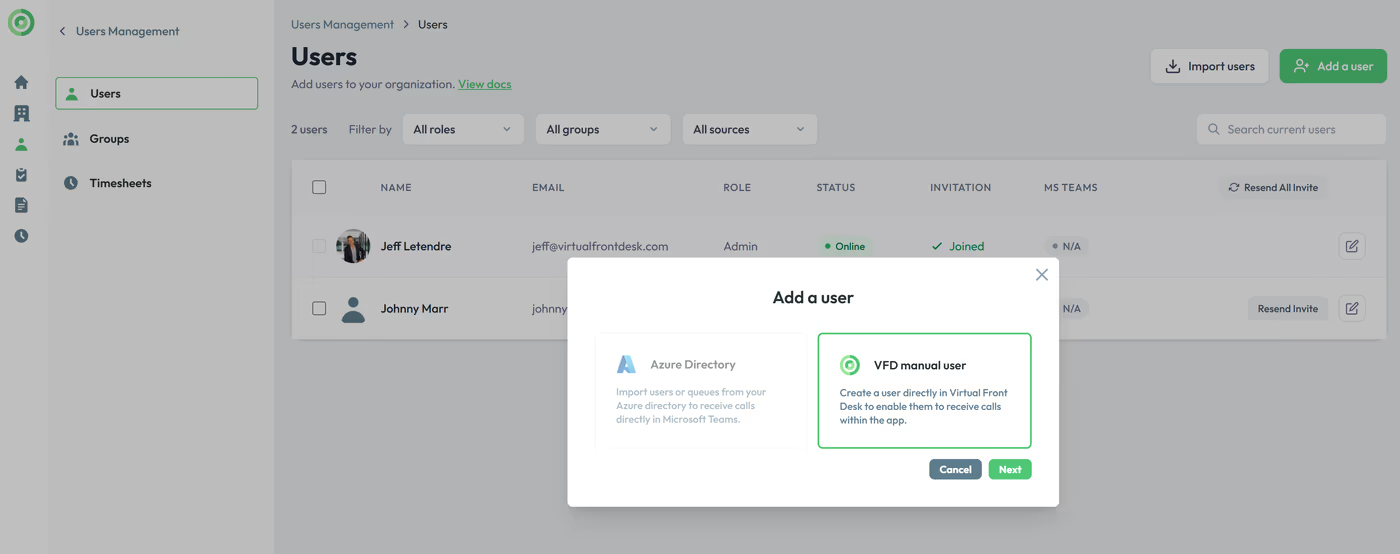
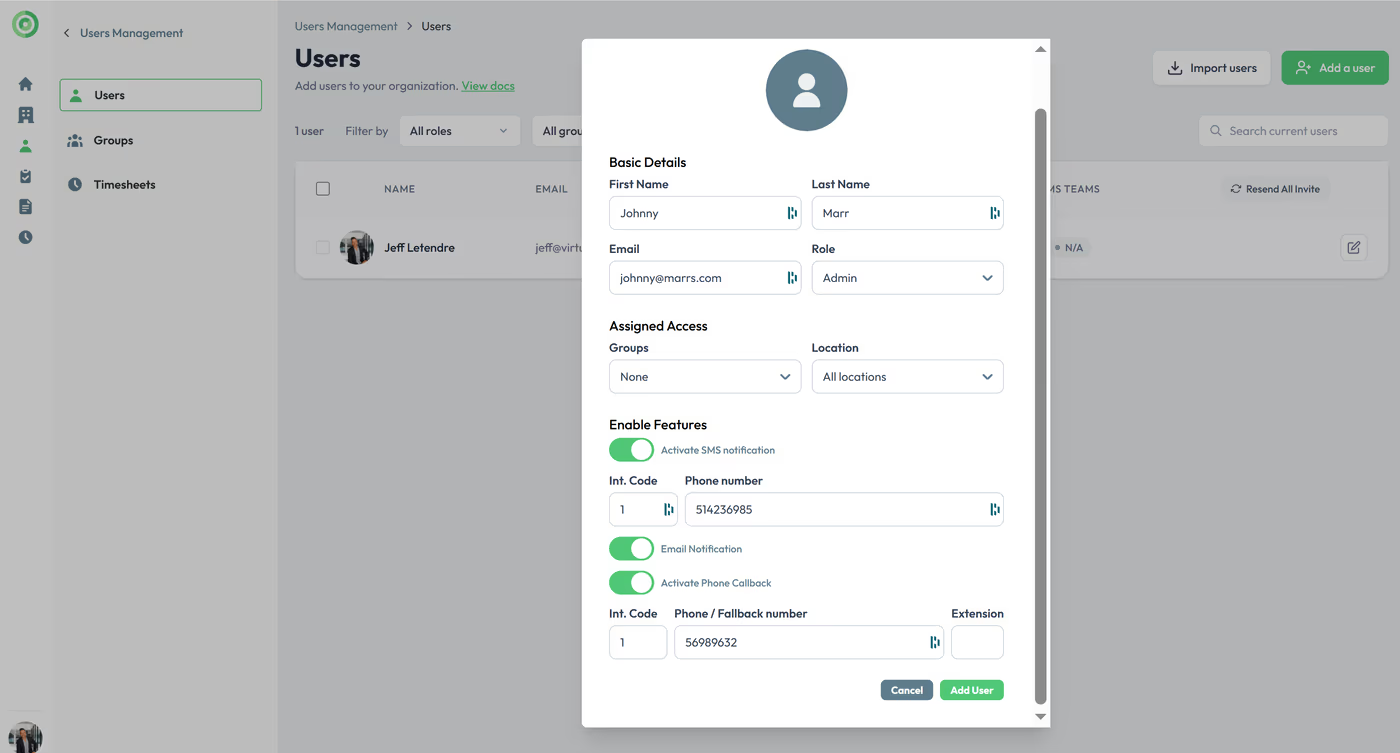
Complete the user information as needed. You can also add an SMS number so the user can receive a text message when their button is selected, as well as a call forwarding number for the system to dial if the user is unavailable in the dashboard.
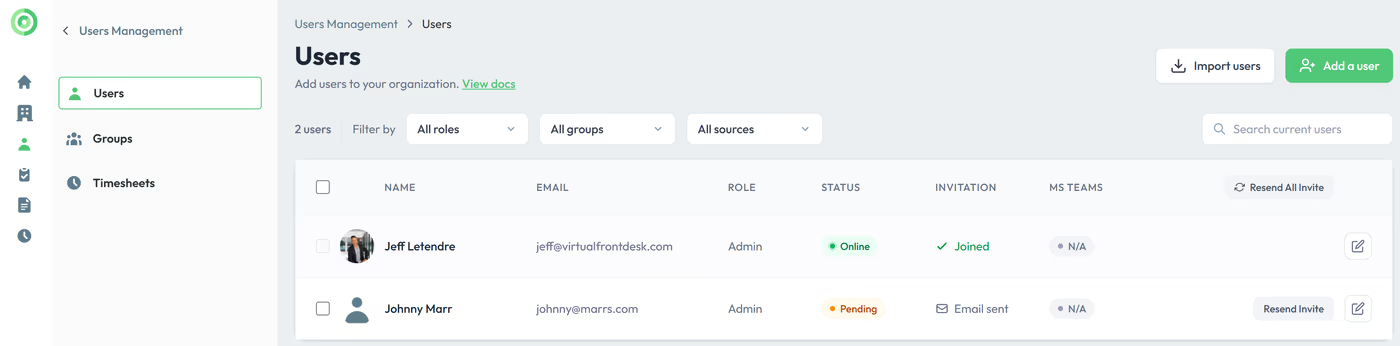
An email will be sent to the user with a link to log into the app with a password. If the user already has a Virtual Front Desk account, no email will be sent. Instead, a pop-up will appear the next time they log in, inviting them to switch teams and join your organization.
The user will remain in Pending status until they log in and join your team.
Owner, Admin and Regular users
The email address used to create a new Virtual Front Desk account will automatically be assigned as the global administrator for that account. This role cannot be transferred or changed unless a new account is created.
By default, all new users added to the account will have regular user roles with limited access to features. However, you can promote any regular user to an admin role by selecting "Admin" in the user’s settings under the user management section.
Key Takeaways for User Management
Adding users to Virtual Front Desk is straightforward — navigate to User Management and choose between a manual email invitation or an Azure Active Directory import. Each user can be set up with optional SMS and call forwarding numbers, and will remain in Pending status until they log in and join your team.
Keep in mind that the email used to create the account is permanently assigned as the global administrator and cannot be transferred. All newly added users receive a Regular role by default, but can be promoted to Admin at any time through the user settings in the User Management section.