
Virtual Front Desk API
Connect Virtual Front Desk to your tech stack
Connect visitor and reception data to your systems with APIs, webhooks, and MCP.
What is VFD API?
What is the Virtual Front Desk API?
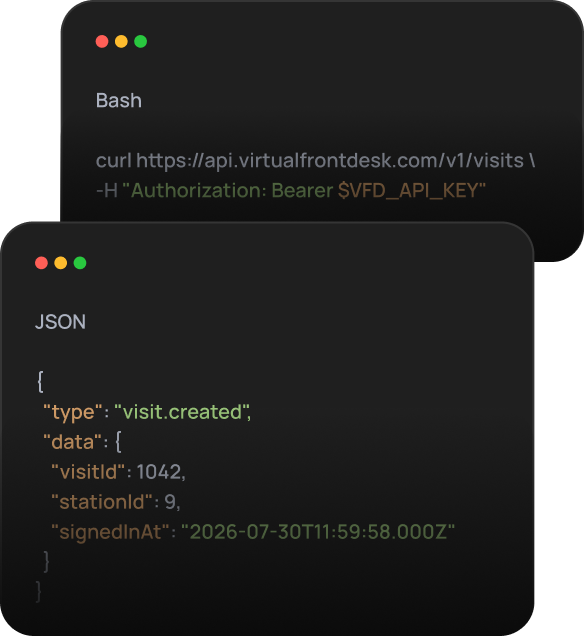
The Virtual Front Desk API lets organizations connect Virtual Front Desk with other software and systems so visitor, call, station, and reception information can move automatically instead of being copied manually. VFD also supports webhooks for real-time event notifications and AI assistant connections for querying front-desk data in natural language.
Three ways to connect
Choose the integration model that fits your workflow
Pull data when you need it, react to events as they happen, or connect AI tools directly to your Virtual Front Desk data.
Request and update front-desk data programmatically
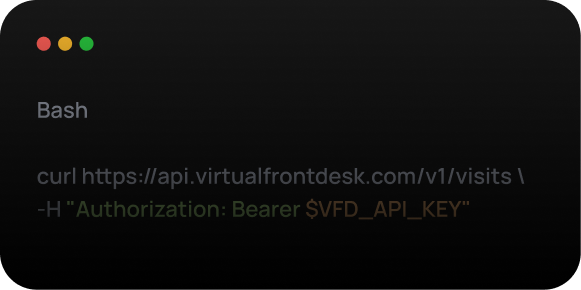
Use the API to connect your own systems with Virtual Front Desk and work with the data and permissions available to your integration.
API
React to front-desk events in real time
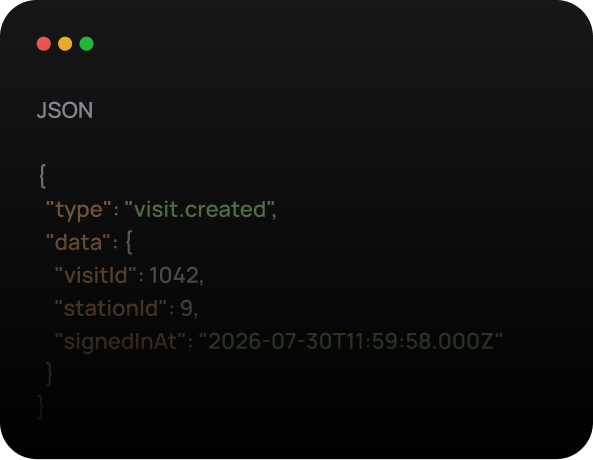
Send signed notifications to your systems when supported events occur, such as a visitor signing in or a call going unanswered.
Webhook
Ask questions about your front desk in plain language
Connect compatible AI assistants to Virtual Front Desk data so teams can ask questions and work with front-desk information using natural language.
MCP
What you can do with it
Build workflows around the way your front desk operates
Every organization is different, so the best integration depends on your needs and on the systems you already use. Here are a few general ideas.
Use case
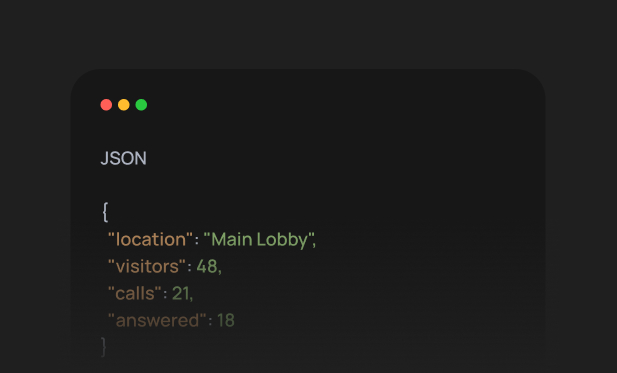
Keep other systems informed
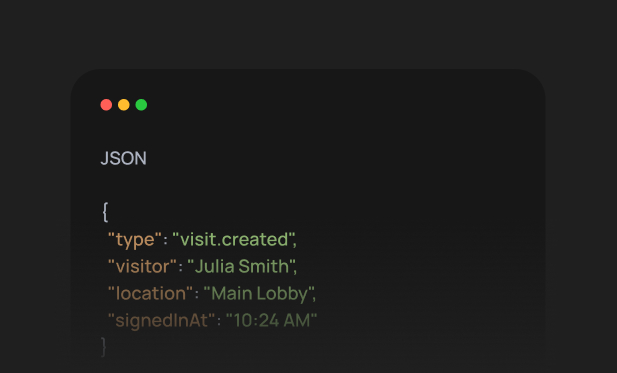
Send visitor arrival and departure information into internal tools so employees, security, or operational systems stay current.
Use case
Bring Virtual Front Desk data into reporting tools
Use visitor and call information in your own dashboards, business intelligence tools, or reporting workflows.
Use case
Respond to front-desk issues
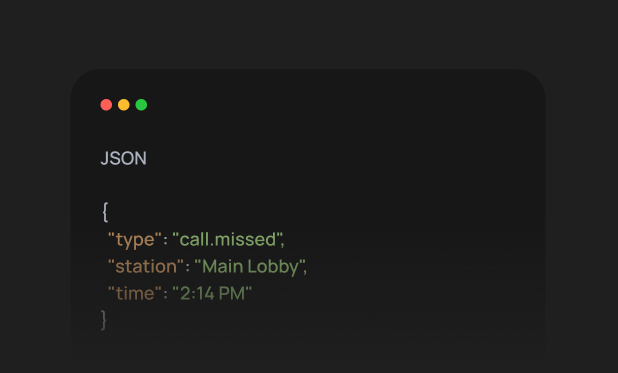
Alert teams the moment a call is missed with the call.missed webhook, and check station status through the API to spot stations that go offline.
Use case
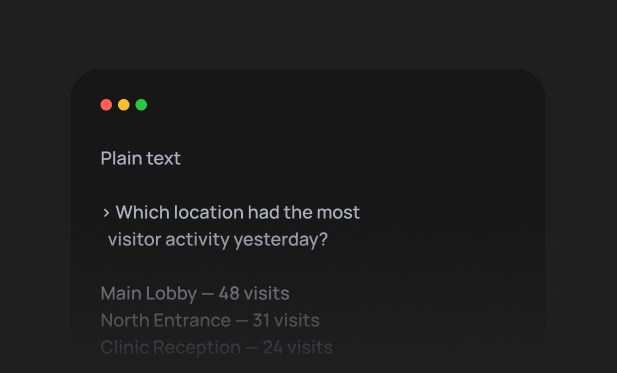
Ask questions about activity
Connect an AI assistant and query visitor, call, and station information without manually navigating dashboards.
Reception and call data
Bring reception activity into your own systems
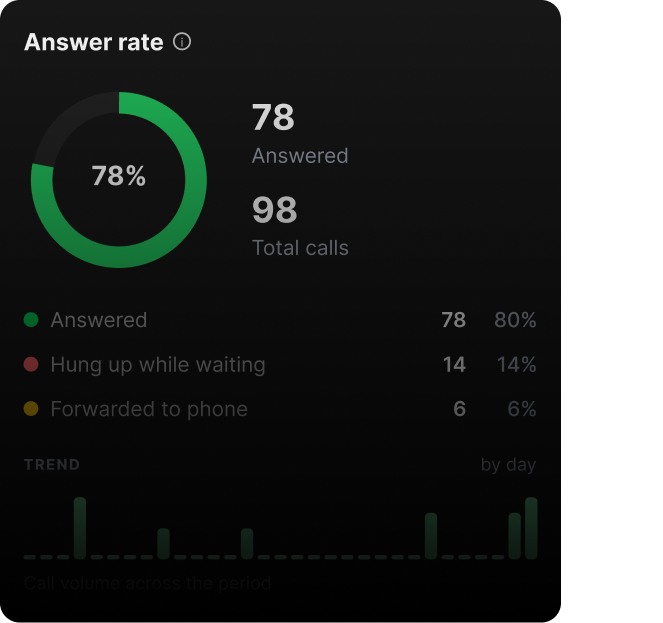
Use Virtual Front Desk call and station data to monitor reception activity, identify missed interactions, and connect reception events with your existing operational tools.
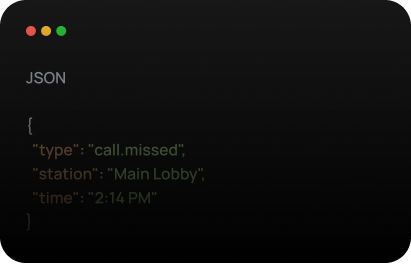
Call history
Bring reception call activity into reporting or operational workflows.
Missed-call alerts
React when calls go unanswered.
Station status
Monitor supported station activity and availability.
Operational reporting
Combine visitor and reception data for a wider view of front-desk performance.



AI assistants / MCP
Connect AI assistants to your front-desk data
Virtual Front Desk supports MCP connections that let compatible AI tools work with your VFD data using natural-language requests.
Read-only by default
Use the read-only connection when the assistant only needs access to information.
Controlled write access
Write access can be enabled when the API key has the required permissions.
Dedicated credentials
VFD recommends using a dedicated API key with an expiry date for AI assistant connections.
Security and access controls
Control what every integration can access
Create separate API keys for different integrations and limit each one to only the permissions it needs.
Scoped permissions
Choose Full access, Read only, Write only, or individual permissions for supported areas.
Expiring keys
Set an optional expiry date for API credentials.
Replace or revoke
Rotate a secret or immediately disable an integration if needed.
Signed webhooks
Webhook notifications are signed so receiving systems can verify that they originated from Virtual Front Desk.
Usage monitoring
See how your integrations are being used
Monitor API activity from your Virtual Front Desk dashboard, including request volume, errors, and endpoint-level usage.
Getting started
From API key to first integration
Follow four simple steps
Open API settings
Go to Settings → Organization → API (Owners and Admins only).
Create an API key
Give the integration a name and choose only the scopes it requires.
Choose your connection
Use the API, configure a webhook endpoint, or connect a supported AI assistant.
Build and monitor
Use the technical API reference and review usage from the VFD dashboard.
Who it is for
Built for teams that need Virtual Front Desk to connect with more than the lobby
IT teams
For teams managing the technology behind the front desk
Connect it to your stack
Integrate Virtual Front Desk with the systems your organization already depends on.
- Use scoped API access
- Connect visitor and reception data
- Trigger workflows with webhooks
- Monitor integration activity
Developers
For teams building custom workflows
Build with Virtual Front Desk
Use APIs, webhooks, and MCP to create integrations around visitor and reception activity.
- Access supported VFD data
- React to real-time events
- Build custom internal tools
- Connect AI assistants through MCP
Integration partners
For partners connecting customer environments
Extend every deployment
Build integrations that connect Virtual Front Desk with the tools and systems your customers already use.
- Support customer-specific workflows
- Connect third-party systems
- Use dedicated API credentials
- Scale integrations across deployments
Data & operations teams
For teams that need better visibility
Bring front-desk data into your reporting
Use visitor, call, and station information in the dashboards and reporting workflows your team already uses.
- Export operational data
- Track visitor and call activity
- Compare locations and stations
- Feed BI and reporting tools
Build Virtual Front Desk into your existing workflow
Connect your visitor, reception, and station activity with the systems your organization already uses through APIs, webhooks, and AI assistant connections.
Do you have questions?
Check them below
If you don't find an answer to your question, please, feel free to contact us
What is the Virtual Front Desk API?
The Virtual Front Desk API lets organizations connect Virtual Front Desk with other software and systems so visitor, call, station, and reception information can move automatically instead of being copied manually.
Does Virtual Front Desk support webhooks?
Yes. Virtual Front Desk sends signed webhook notifications to your systems when supported events occur, such as a visitor signing in or a call going unanswered.
Can I connect AI assistants to Virtual Front Desk?
Yes. Virtual Front Desk supports MCP connections that let compatible AI assistants work with your VFD data using natural-language requests. Connections are read-only by default, and write access can be enabled when the API key has the required permissions.
Can API access be restricted?
Yes. Create separate API keys for different integrations and limit each one to only the permissions it needs: Full access, Read only, Write only, or individual permissions for supported areas.
Can API keys expire?
Yes. You can set an optional expiry date for API credentials, and rotate a secret or immediately disable an integration if needed.
Who can manage API settings?
Only organization Owners and Admins can manage API settings and API keys.
Which VFD plans include API access?
API access is included on the Professional and Enterprise plans.
Where can developers find the technical documentation?
Developers can open the technical API reference from Explore API Documentation on this page, and review API usage from the Virtual Front Desk dashboard.

SOC 2 Certified
Independently assessed security controls, certified under SOC 2.
