Monitoring or Live streaming your stations
Overview of Lobby Monitoring with Virtual Front Desk
The Virtual Front Desk monitoring feature, available on the Enterprise plan, enables your team to keep a watchful eye on lobby areas and reception zones directly from the dashboard. While a station continues to display its standard welcome screen and action buttons for visitors, its built-in camera simultaneously streams a live feed that receptionists can view in real time.
This capability bridges the gap between physical presence and remote management, allowing staff to proactively engage with visitors as soon as they appear in the lobby. If a visitor is spotted on the live feed, a video call can be initiated instantly without the visitor needing to take any action first.
Understanding the technical design choices behind the monitoring stream — such as resolution limitations and feed capacity — helps teams configure coverage effectively, especially across multi-station or multi-location deployments.
How to Set Up and Use Lobby Monitoring
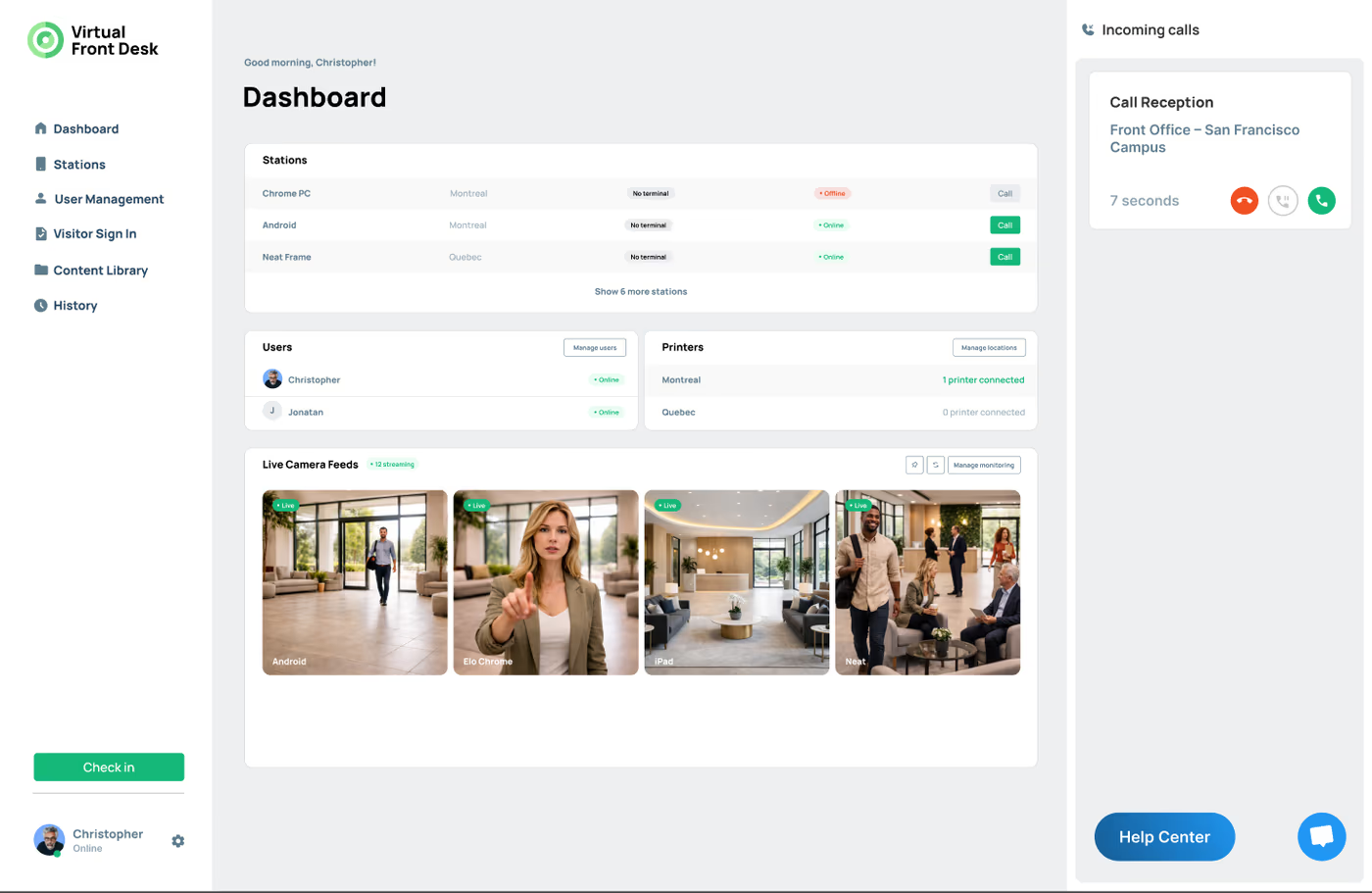
With the Enterprise plan, Virtual Front Desk now allows you to monitor the lobby or area where your station is located. While the station continues to display the welcome screen and action buttons, its camera streams a live feed that you can view directly from your dashboard.
If you see a visitor you’d like to engage with, you can start a video call instantly by clicking the call icon on the live stream or by using the call button for that station from your dashboard’s station list.
To avoid additional subscription costs, the monitoring stream is intentionally low resolution. It may appear slightly pixelated and lag by 3–4 seconds. Once you initiate a video call, normal video quality is restored. The monitoring stream is designed to give you a quick view of the lobby not high-definition video.
You can monitor as many stations as you like; however, only four live feeds can be viewed at the same time. You can switch between stations by changing pages and choose which four stations to display by collapsing or expanding individual feeds.
For example, if you have 12 stations and 3 receptionists, each receptionist can monitor 4 stations, allowing your team to collectively cover all 12 stations.
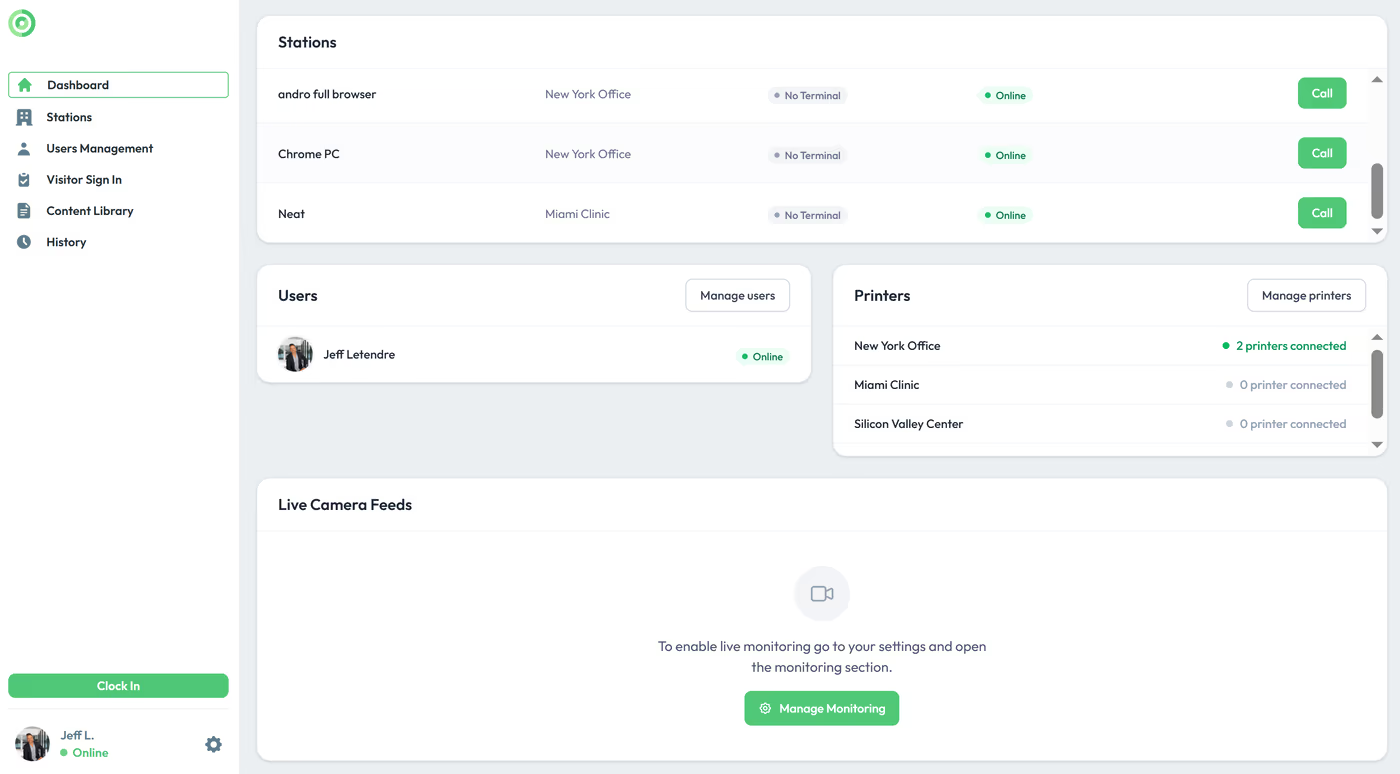
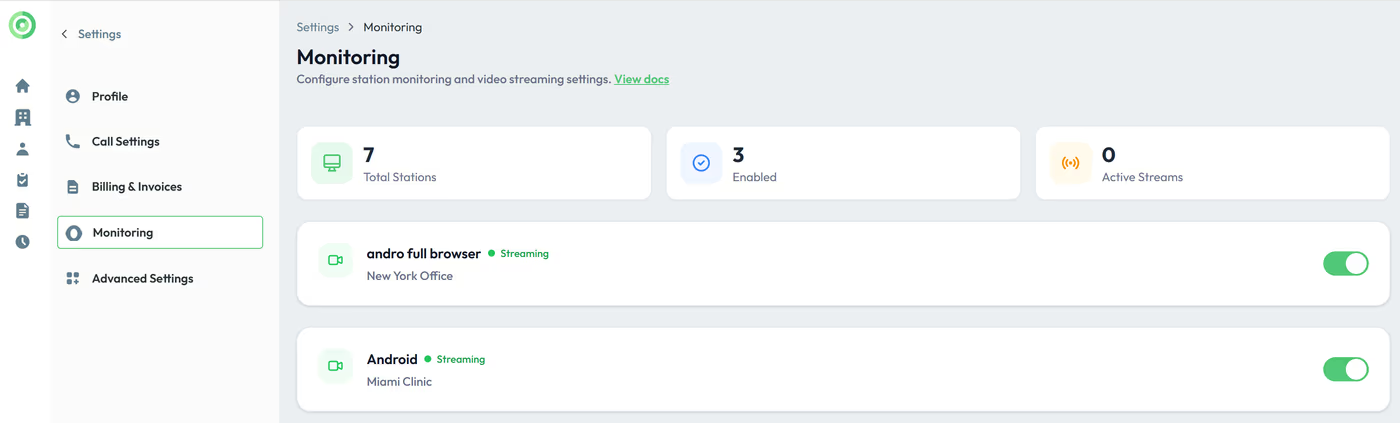
To enable monitoring, click Manage Monitoring or go to your Settings and select the stations you want to monitor. Please note that users can only monitor stations in locations they have permission to access.
Key Takeaways for Lobby Monitoring
The Virtual Front Desk lobby monitoring feature gives Enterprise plan users a low-resolution live stream of each station's surroundings, with a 3–4 second lag to minimize subscription overhead. Full video quality is restored automatically once a video call is initiated. Up to four live feeds can be viewed simultaneously per user, and teams can coordinate coverage by assigning stations across multiple receptionists.
To get started, navigate to Manage Monitoring or your Settings to select which stations to monitor. Keep in mind that users can only monitor stations within locations they are permitted to access, ensuring that access control and security policies are respected across your organization.