SMS for Microsoft Teams
Receiving SMS Messages in Microsoft Teams via Virtual Front Desk
Virtual Front Desk offers a powerful SMS feature that allows you to receive text messages directly inside Microsoft Teams — no integration, Calling Plan, or Teams Phone license required. Available from April 2026, this feature is designed to streamline front desk communications by bringing visitor and guest messages into a platform your team already uses daily.
This capability is ideal for organizations that want a fast, lightweight way to handle incoming SMS notifications without the overhead of complex telephony setups. By leveraging Microsoft SSO and Azure Active Directory, Virtual Front Desk ensures secure and seamless user authentication and provisioning.
In addition to SMS, Virtual Front Desk also supports video calls into Microsoft Teams, making it a comprehensive solution for managing visitor interactions from within your Teams environment.
How to Set Up Microsoft Teams SMS with Virtual Front Desk
*Available from April 2026
Virtual Front Desk allows you to receive SMS text messages directly in Microsoft Teams without requiring any integration, Calling Plan, or Teams Phone license.
To use Microsoft Teams, you must log in to Virtual Front Desk using the Microsoft SSO option when creating your account. Users must be imported from Azure Active Directory, not added manually via email. This step is essential.
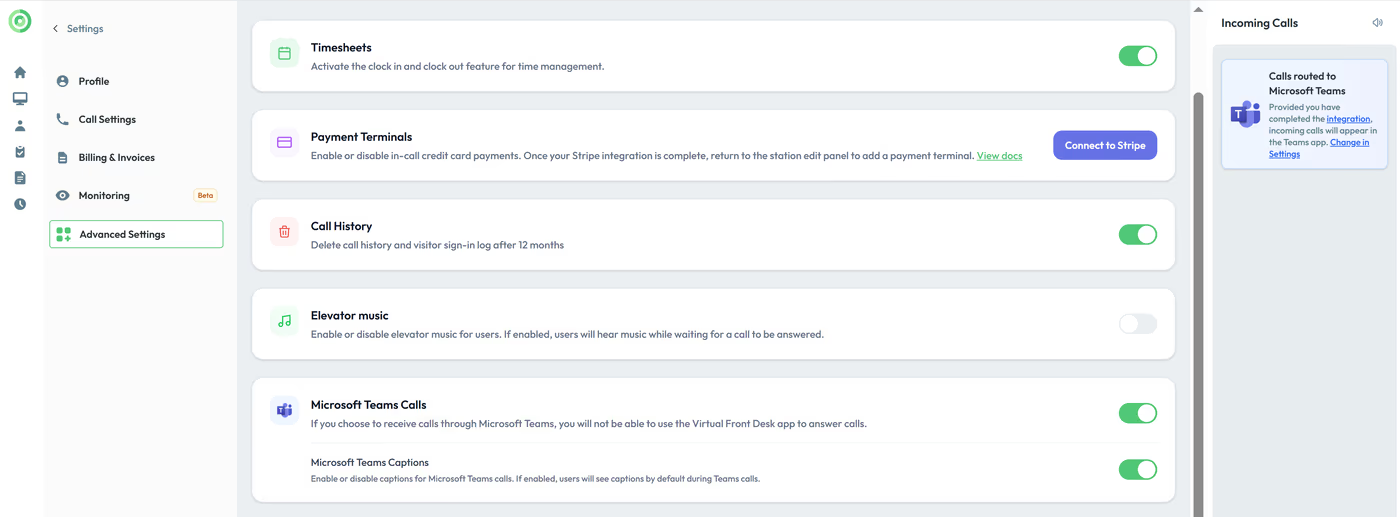
Next, go to your Virtual Front Desk dashboard, navigate to Settings > Advanced Settings, and enable both Microsoft Teams and Microsoft Teams SMS.
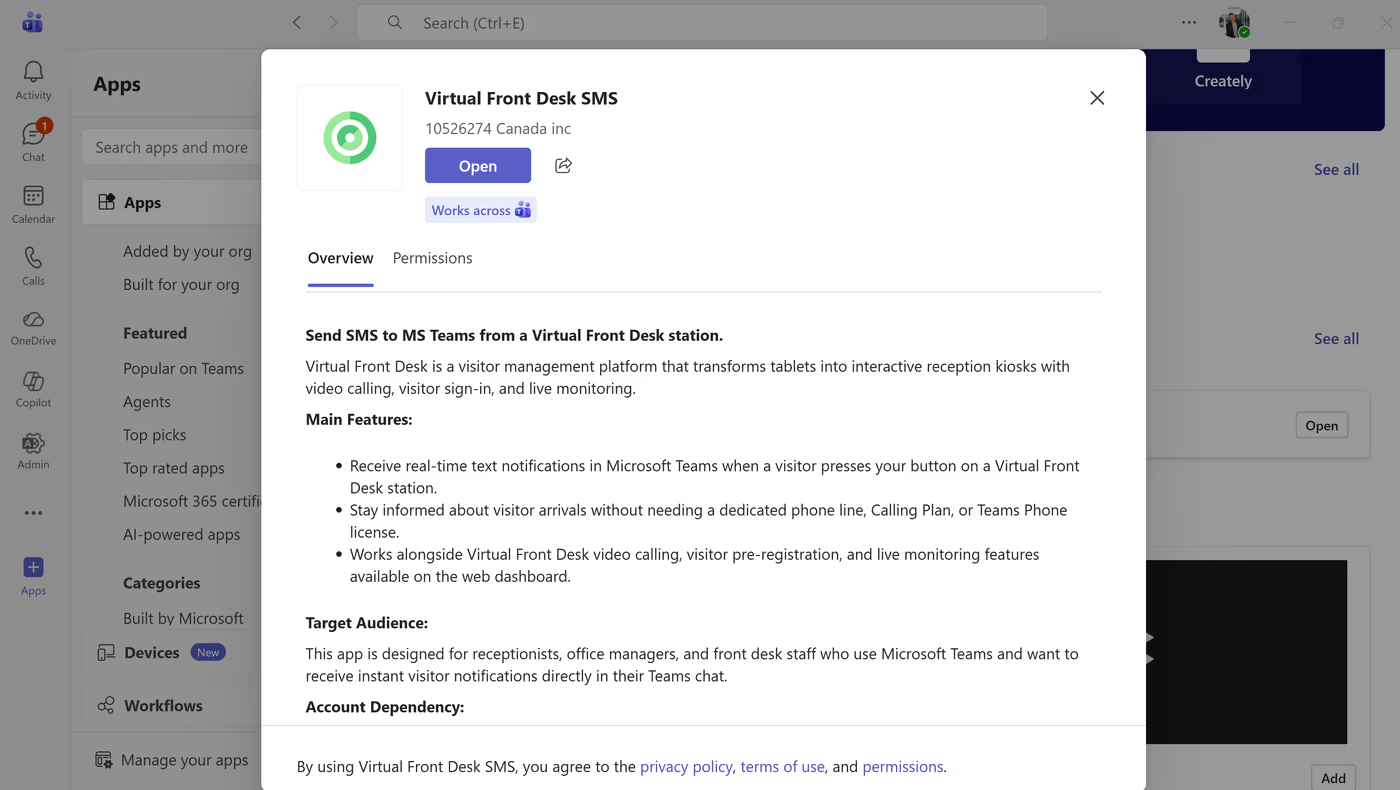
Then, open Microsoft Teams, search for “Virtual Front Desk SMS” in the app store, and install the app.
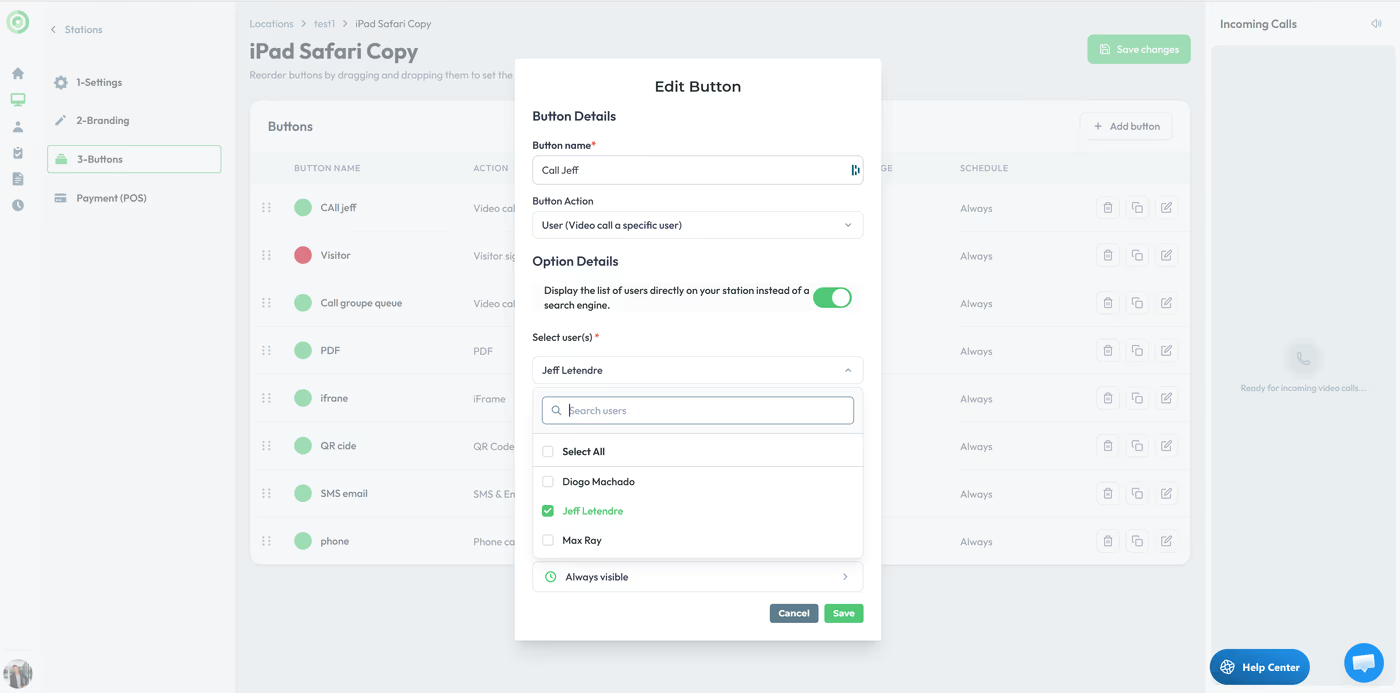
When creating a button, select the User option and choose the appropriate user. If Microsoft Teams SMS is enabled for that user, they will begin receiving text messages directly in Teams.
You can also enable or disable SMS notifications at any time from the user edit section in Virtual Front Desk.
Virtual Front Desk also supports video calls into Microsoft Teams. For that setup, please refer to the Microsoft Teams integration documentation.
The SMS feature is a quick and simple way to start receiving messages in Teams within minutes.
Key Takeaways for Teams SMS Setup
Setting up SMS in Microsoft Teams through Virtual Front Desk is a straightforward process: sign in using Microsoft SSO, ensure users are imported from Azure Active Directory, enable both Microsoft Teams and Microsoft Teams SMS in Advanced Settings, and install the Virtual Front Desk SMS app from the Teams app store. Once configured, users assigned to buttons will automatically receive SMS messages directly in Teams.
SMS notifications can be toggled on or off at any time from the user edit section, giving administrators flexible control over who receives messages. This feature requires no additional licensing and can be operational within minutes of setup.