Mobile application iPhone and iPad
Using the Virtual Front Desk Mobile App
The Virtual Front Desk mobile app brings the power of face-to-face visitor service directly to your iPhone or iPad. By downloading the app from the App Store (search for "Virtual Front Desk Mobile"), you can receive native video call notifications and respond to visitors no matter where you are within your facility.
This mobile experience is designed for convenience, allowing staff to answer incoming calls, manage hold states, and provide real-time video support from a handheld device. Please note that the app is currently only available for iOS devices — specifically iPhones and iPads.
It is important to understand that the mobile app provides a subset of the features available on the full desktop dashboard. For access to advanced configuration and management tools, the PC-based dashboard remains the recommended interface. Additionally, users outside the US (on .ca, .global, or .asia domains) should reload the app after their first login to ensure proper functionality.
Key Details and Behaviors of the Mobile App
*Important: If you're outside the US (.ca, .global, .asia), you must reload the app after your first login.
Virtual Front Desk offers a mobile app that lets you receive native video call notifications directly on your iPhone or iPad. Simply search for "Virtual Front Desk Mobile" in the App Store to download it.
The app allows you to provide face-to-face service right from your mobile device. Please note our mobile app is only currently available for iPhones and iPads.
Here are some key details to know:
- The mobile app offers limited functionality. To access the full range of Virtual Front Desk features, please use the dashboard on a PC.
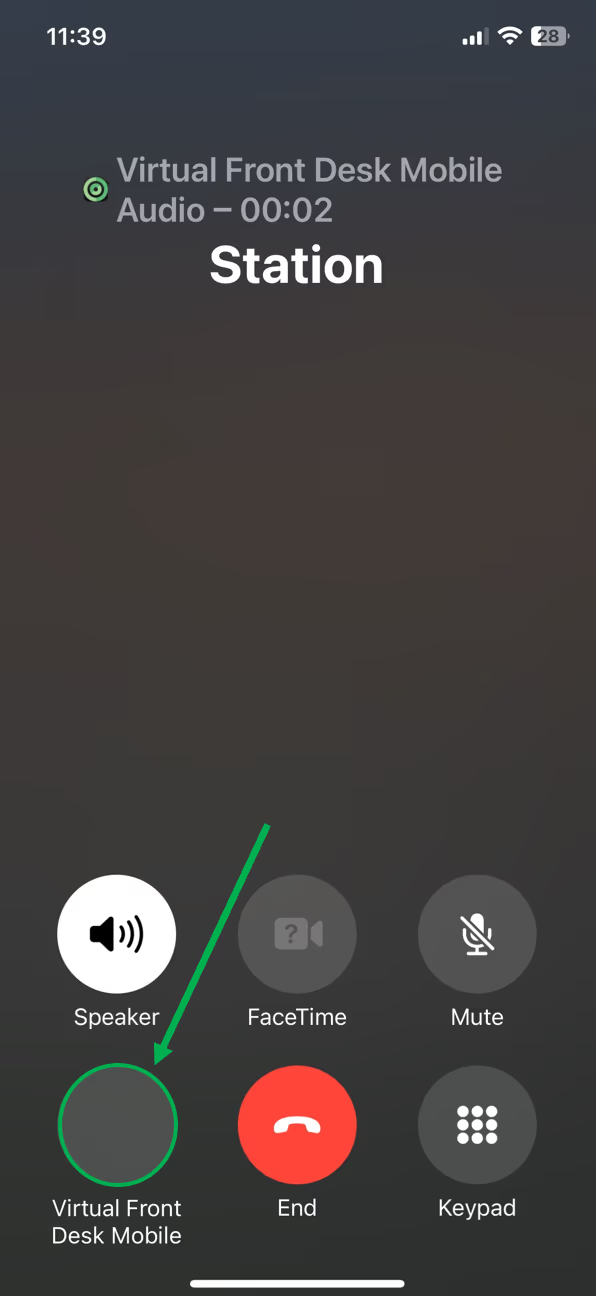
- When your iPhone is locked, sliding the notification will answer the call with audio only. To enable video, tap the Virtual Front Desk mobile button after answering.
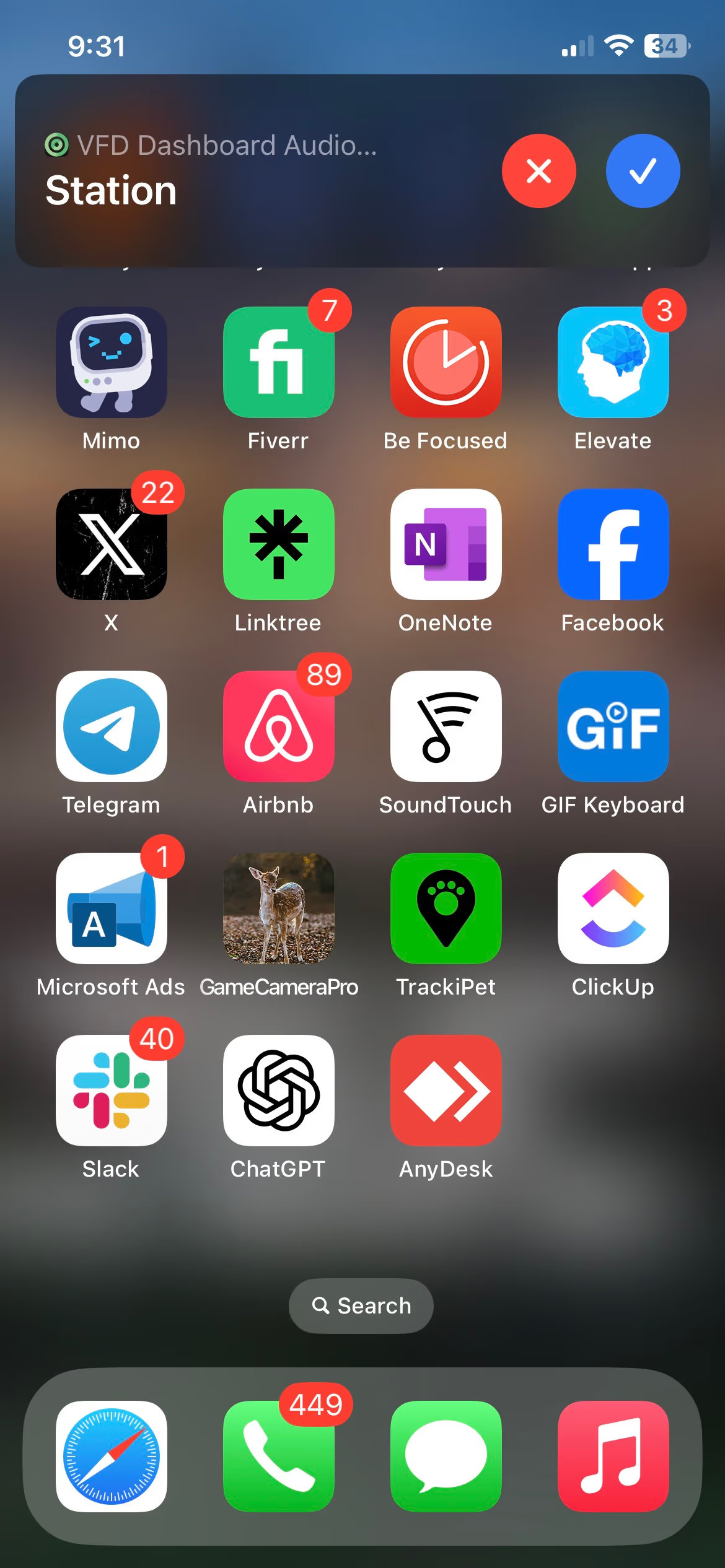
- Ending a call from the iOS notification will dismiss the alert on your phone, but it won’t end the call itself. If unanswered, the call will automatically time out and end on the station after a few seconds.
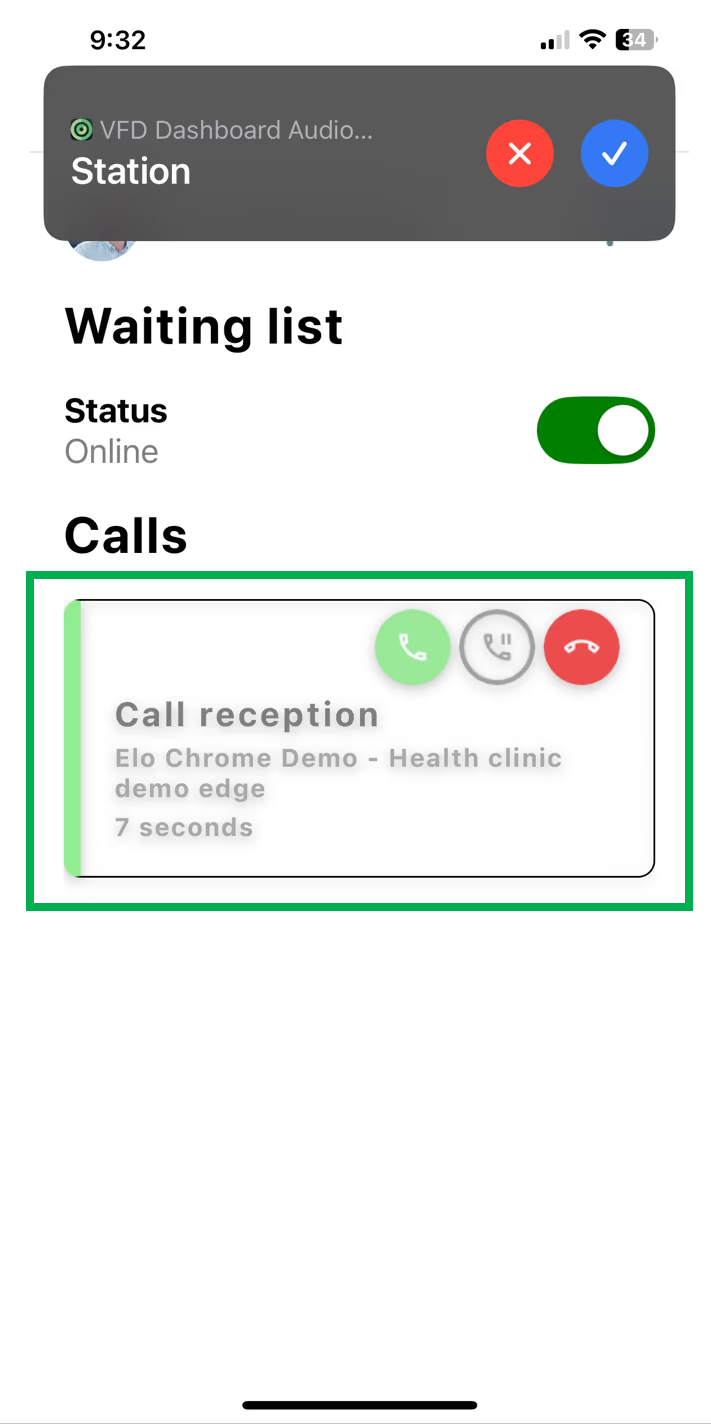
- While using the app, the notifications function just like they do on the dashboard, you can end a call or place it on hold.
- During a video call, if another call comes in, you won’t be able to place the current call on hold. Answering the new one will end the active call.
Summary of Mobile App Capabilities and Limitations
The Virtual Front Desk mobile app enables iOS users to receive and respond to visitor video calls natively on their iPhone or iPad. When answering from a locked screen, audio connects immediately, and video can be enabled by tapping into the app. Calls dismissed via iOS notifications will not end the session on the station — the call will time out automatically if unanswered.
Keep in mind that the mobile app has limited functionality compared to the desktop dashboard, and answering a second incoming call while on an active video call will terminate the current session. For full feature access and advanced management, always use the PC dashboard as your primary interface.