Documents, PDFs, QR Codes & iFrames
Introduction to Virtual Front Desk Content Sharing
Virtual Front Desk is a powerful solution that replicates the full range of tasks a traditional receptionist would handle, all from a digital station. One of its standout capabilities is the ability to display and share rich content — including PDFs, QR codes, and iFrames — either through button actions on your station or directly during live video calls.
Whether you need to collect signatures on a document, share a fillable form with a visitor, or display a web application alongside your front desk interface, the Content Library provides a centralized hub for managing all of these assets. These tools are designed to streamline visitor interactions and reduce the need for physical paperwork or in-person staff.
This guide walks through each content type available in the Virtual Front Desk Content Library — Documents, QR Codes, and iFrames — and explains how to configure and use them effectively across different scenarios such as live calls, station displays, and visitor sign-in forms.
How to Use Documents, QR Codes, and iFrames in Virtual Front Desk
Virtual Front Desk allows you to perform everything a receptionist would typically do behind a counter. PDFs, QR codes, and iFrames can be displayed using a button on your station or sent to the station screen during a live video call for signatures or to share information. PDFs can also be sent directly to a printer. To get started go to the Content library tab.

Documents
Upload PDFs to share during a live video call, either by displaying them on the screen or sending them to a printer. You can also display PDFs on your station or within a visitor sign-in form. Additionally, names, emails, and signatures can be added to a PDF either during a live call or as part of the visitor sign-in process. A simple way to share a PDF with visitors is to add a QR code to the PDF, allowing them to easily access and download it on their device.
QR Codes
From the document section you can create QR codes by adding any URLs you want to display behind a button as an action. During a live call, you can also instantly send a QR code to the screen by entering a full URL using the QR code icon. To display a QR code permanently on your station screen use the QR code function under the station's edit section. The full URL containing https:// is required.
iFrames *(No Redirection Allowed)
This feature allows you to display various URLs within an iFrame alongside the Virtual Front Desk app, such as online fillable forms (for example, Jotform or Microsoft Forms), websites, or certain web applications like Google Calendar. The iFrame can be triggered by a button action on the station, shared on the station screen during a live video call, or included as part of a visitor sign-in form when a more complex form is required. You can also split your Station screen with an iFrame.
Please note that iFrames do not support redirections. If the embedded content attempts to redirect to a different URL, the iFrame will fail to load. For this reason, any website, form, or web application displayed in an iFrame must remain within the same domain.
Additionally, not all websites or applications allow iFrame embedding, as this can mask the original URL. If the iFrame does not load, this restriction is likely the cause.
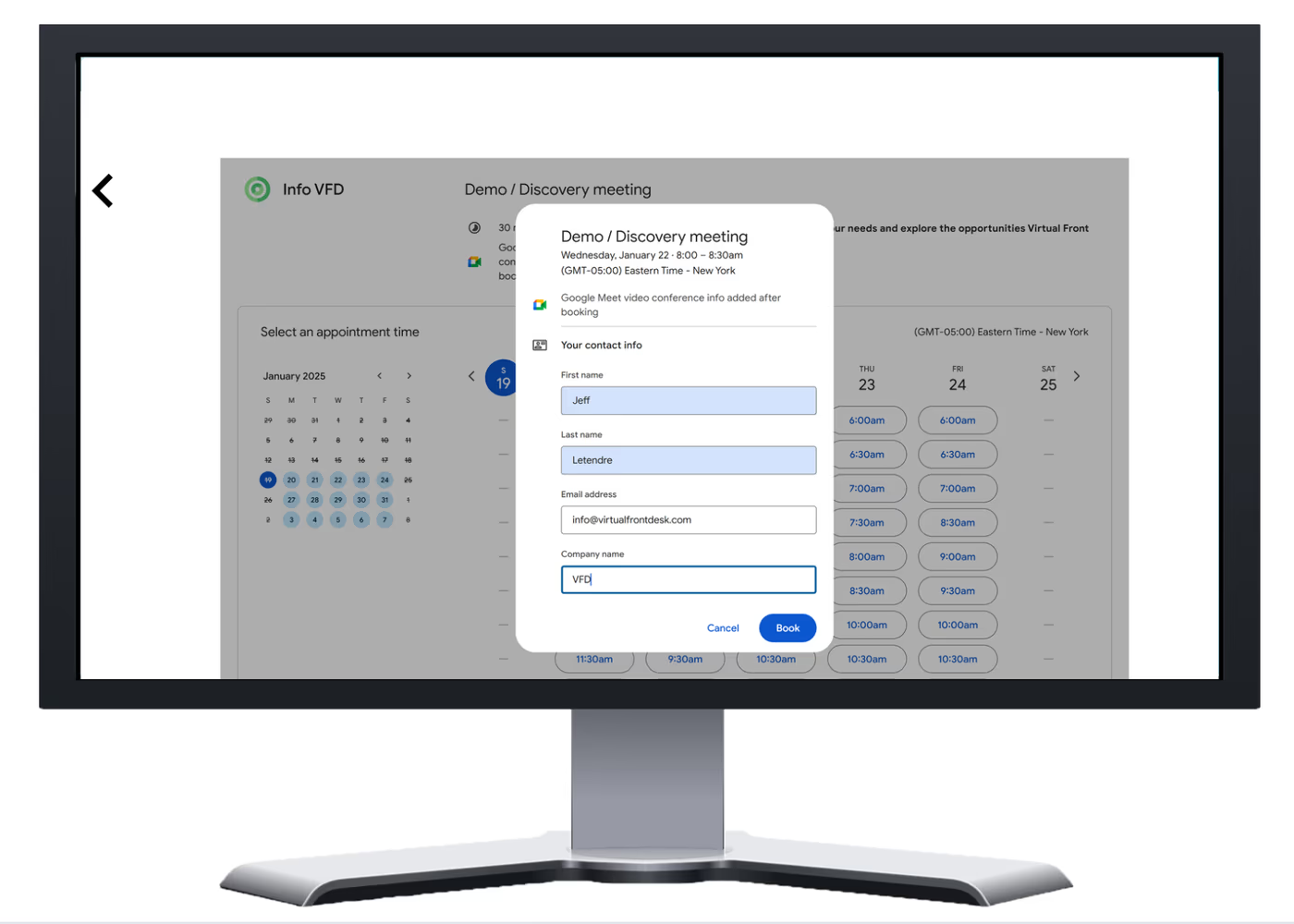
Displaying iFrames on Your Station and Splitting the Screen:
To split your station screen and display an iFrame, access the station's settings's section and toggle the iFrame option. Enter the full desired URL. This will split your screen.
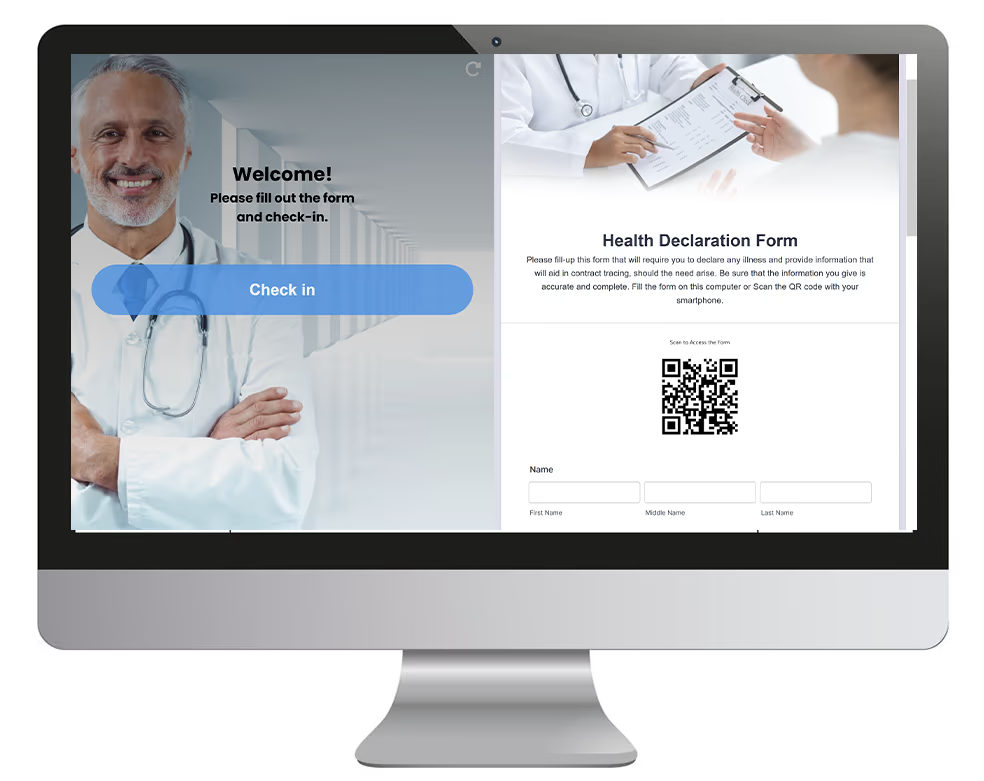
Displaying an iFrame with a button
Select iFrame as a button's action and choose one or several iFrames to create a sub menu.
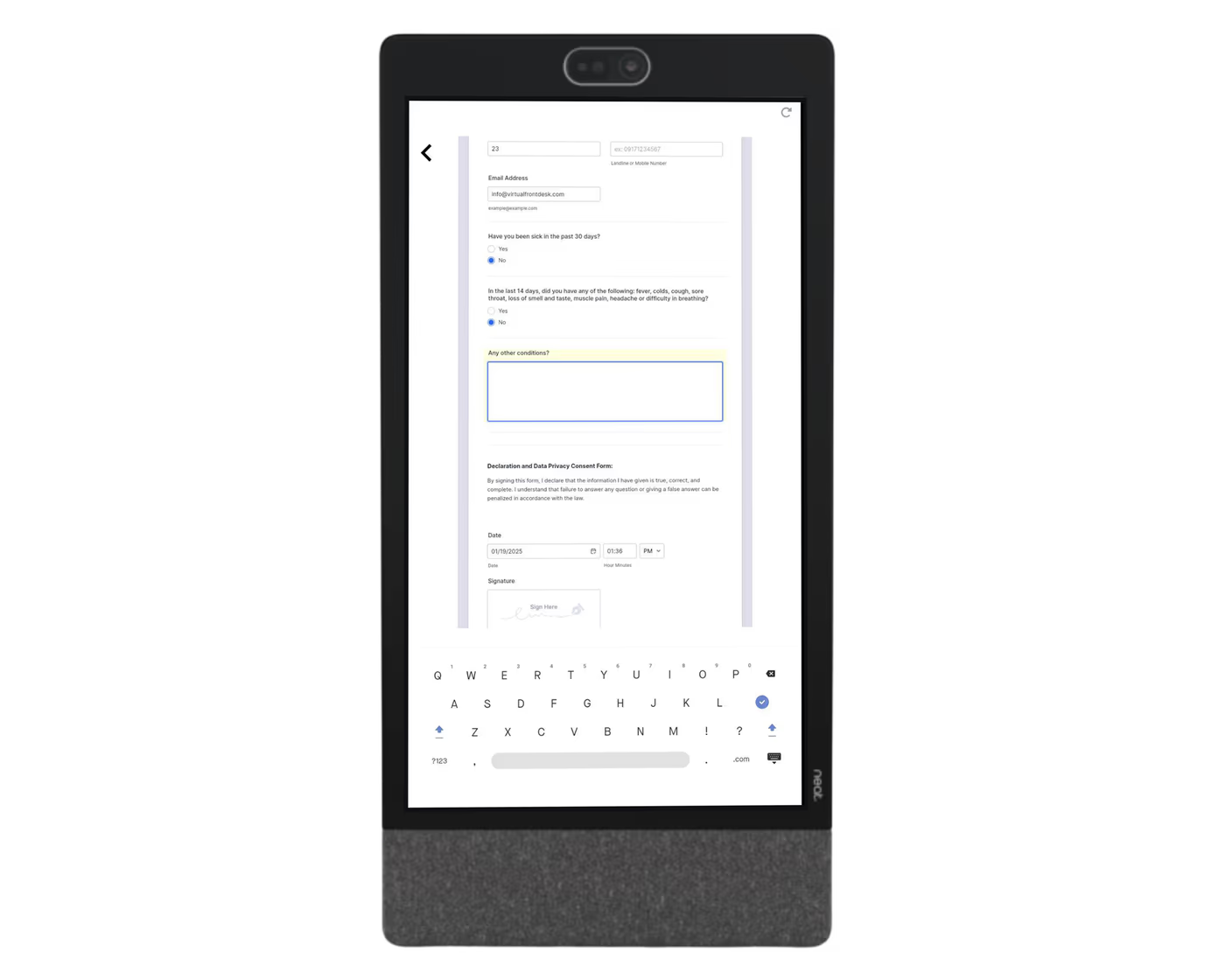
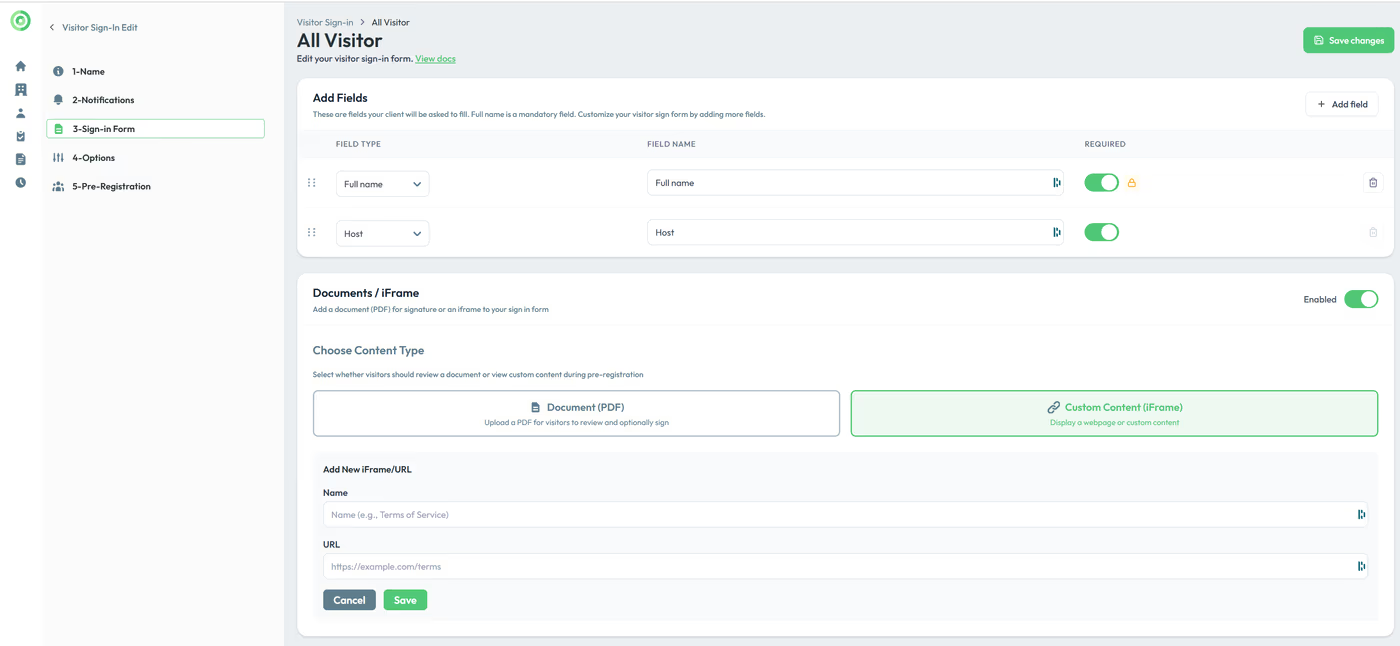
Displaying an iFrame in a Visitor Sign-In Form:
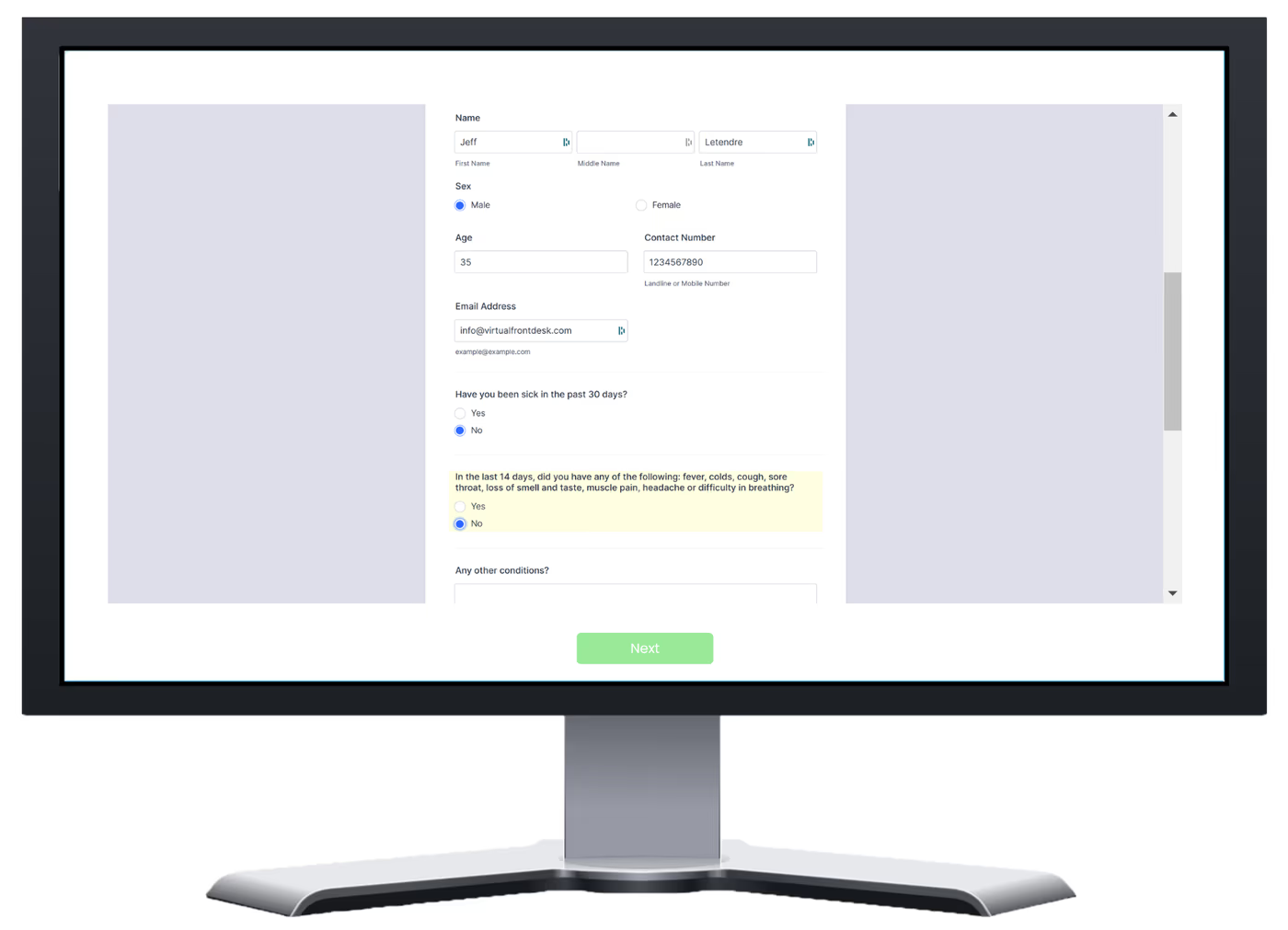
Select the iFrame:
- Go to the Visitor Sign-in tab, Sign-in form, enable iFrame.
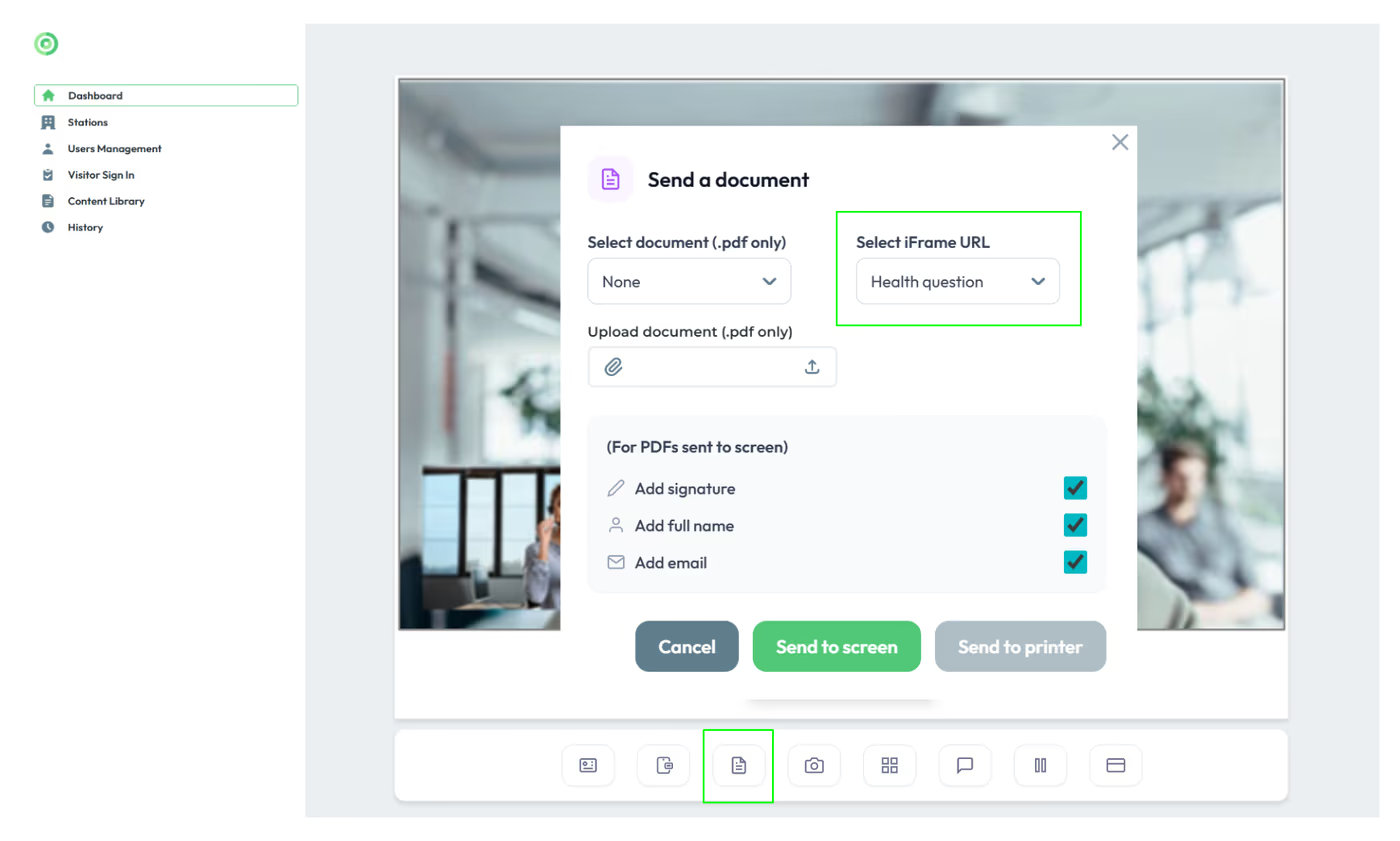
Sending an iFrame During a Live Video Call:
Add the iFrame:
First, add the iFrame in the Content Library section.
Send iFrame to Screen:
During the live video call, from the documents options located at the bottom of your screen, select the URL and send to Screen.
Key Takeaways for Virtual Front Desk Content Management
The Virtual Front Desk Content Library supports three main content types: Documents (PDFs), QR Codes, and iFrames. PDFs can be uploaded and shared during live video calls, sent to a printer, displayed on station screens, or embedded in visitor sign-in forms — with support for capturing names, emails, and signatures. QR codes can be created from URLs and displayed via button actions, station screens, or generated on-the-fly during a live call using the QR code icon.
iFrames allow you to embed external web content such as online forms or web applications directly within the Virtual Front Desk interface, either as a split-screen on the station, via a button action, within a sign-in form, or sent to the screen during a live call. Keep in mind that iFrames do not support URL redirections and not all websites permit iFrame embedding, so always verify that your target content is compatible before deploying it in production.