Knowledge Base



Do you have questions? Check them below
If you don't find an answer to your question, please, fill free to contact us
Can Virtual Front Desk replace Microsoft Teams Displays Virtual Front Desk?
Virtual Front Desk itself specializes in software solutions and does not directly offer Virtual Assistants to answer calls. However, they have partnered with Virtual Rockstars, a trusted provider of virtual assistant services, to help meet this need.
If you need a live person to answer and manage calls on your behalf, knowing about this partnership means you don't have to search elsewhere. You can access a vetted, trusted virtual assistant service through a partner recommended directly by Virtual Front Desk, saving you time and ensuring quality.
- Navigate to the Virtual Assistants page in the main menu of the Virtual Front Desk website.
- Review the Virtual Rockstars services to determine if they meet your call-answering needs.
- Reach out to Virtual Rockstars directly through the information provided on that page to get started.
Can Virtual Front Desk replace Microsoft Teams Displays Virtual Front Desk?
The Microsoft Teams integration enables seamless video call communication by sending notifications directly to MS Teams users — bypassing the Virtual Front Desk dashboard entirely. Buttons on your station can initiate video calls to recipients via the MS Teams desktop or mobile application. You can also configure your station to call an MS Teams call queue for efficient call routing.
Important Requirements:
- An MS Teams Calling Plan must be assigned to the Microsoft administrator.
- Each user receiving calls from the station must have a Teams Phone Standard license.
This integration is important because it allows organizations already using Microsoft Teams to leverage their existing communication infrastructure. It eliminates the need for staff to monitor a separate Virtual Front Desk dashboard, ensuring calls are received faster and more reliably through a familiar app. This improves response times, reduces missed calls, and enhances overall workplace connectivity and efficiency.
- Verify licensing: Confirm that your Microsoft administrator has an active MS Teams Calling Plan assigned.
- Check user licenses: Ensure every user who will receive calls from the station has a Teams Phone Standard license.
- Configure your station: Set up the station buttons to initiate video calls to the appropriate MS Teams users or call queues.
- Test the integration: Place a test call from the station to verify that notifications arrive correctly on the MS Teams desktop or mobile app.
- Contact support: If you need assistance with setup, reach out to your administrator or support team for guidance on connecting the station to MS Teams.
Can Virtual Front Desk replace Microsoft Teams Displays Virtual Front Desk?
Yes, Virtual Front Desk is available worldwide and accessible in most major markets around the globe, including North America, Europe, Asia, and Australia.
Global availability means that no matter where your business or customers are located, you can rely on Virtual Front Desk to support your operations without geographic restrictions. This is especially important for businesses with international clients or remote teams spanning multiple regions.
- Check if your specific country or region is supported by contacting the Virtual Front Desk support team.
- Review any regional pricing or plan differences that may apply to your location.
- Sign up or request a demo to get started in your market.
Can Virtual Front Desk replace Microsoft Teams Displays Virtual Front Desk?
Virtual Front Desk offers free live chat support with the following features:
- Hours: Monday–Friday, 7 AM to 7 PM EST
- Live Assistance: Chat with an AI bot first; if it can't help, a human specialist steps in
- Enhanced Support: Video calls and screen-sharing are available so agents can view your dashboard and resolve issues directly
Knowing that real human support is available — not just a chatbot — gives you confidence that technical or account issues can be resolved quickly and effectively. The screen-sharing and video call options mean you won't have to struggle through complex problems alone, reducing downtime and frustration.
If you need help, here's what to do:
- Check the documentation first — it covers most common topics and may answer your question immediately.
- Open the live chat during business hours (Mon–Fri, 7 AM–7 PM EST) to connect with the AI bot or a live specialist.
- Request a screen-share or video call if your issue is complex and easier to show than describe — the support team can view your dashboard directly to help resolve it faster.
Can Virtual Front Desk replace Microsoft Teams Displays Virtual Front Desk?
Free Trial: Every new account starts with a 30-day free trial for the Enterprise plan, activated once you add your credit card in the billing section. Your subscription auto-starts at trial end unless you cancel or downgrade.
Cancellation: You can cancel anytime via the billing section. No further charges will occur, but your account remains open.
Annual Plan / Prepaid Credit: A non-refundable prepaid credit option with bonuses:
- Add $500+ → 20% bonus credit
- Add $1,000+ → 25% bonus credit
Credit applies to any plan; monthly charges resume when credit runs out.
Pricing (per active station):
- Enterprise: $109/month — all-inclusive
- Professional (Pay-As-You-Go): $49/month + $0.07/video call + $7/additional user (beyond 5) + $7/group/month
- Essential: $29/month flat fee
Understanding your subscription options helps you avoid unexpected charges and choose the plan that best fits your usage and budget. Knowing the trial terms ensures you won't be billed unexpectedly, and understanding per-station pricing helps you accurately forecast costs as your team grows.
- Start your free trial: Add your credit card in the billing section to activate your 30-day Enterprise trial.
- Compare plans: Evaluate whether Enterprise ($109/station), Professional ($49/station + usage), or Essential ($29/station) best suits your needs before the trial ends.
- Consider prepaid credit: If you plan to use the service long-term, add $500 or more to your account to unlock bonus credits and save up to 25%.
- Cancel or downgrade easily: If the service isn't right for you, cancel anytime through the billing section with no penalty.
Can Virtual Front Desk replace Microsoft Teams Displays Virtual Front Desk?
Virtual Front Desk stands out from competitors through four core feature areas, plus a rich set of additional capabilities:
- Comprehensive Notifications: Reach staff via video calls (web app or Microsoft Teams), phone calls, SMS, email, call forwarding, and call queues.
- Visitor Management: Custom sign-in forms, document signing, selfie capture, visitor badge printing, and sign-out tracking.
- Advanced Live Video Call Functionalities: ID capture, document sending/signing, digital scanning, document printing, QR code sharing, screen sharing, text-to-screen, and Stripe credit card payment processing.
- Branding & Customization: Fully customizable station screens to match your company's look and feel.
Additional Features include: Station monitoring from your dashboard, iOS/Android mobile apps, detailed activity history, multi-language support, PDF/QR code display, employee directories with Azure Active Directory integration, and centralized management of multiple locations.
Choosing the right virtual receptionist platform directly impacts your visitors' first impression, your staff's responsiveness, and your organization's security. Virtual Front Desk's multi-channel notifications ensure no visitor is left waiting, while its visitor management and video call tools reduce the need for on-site reception staff. The deep customization and centralized management capabilities mean the platform can scale with your business — whether you have one location or many — without sacrificing a professional, branded experience.
Here's how to get started evaluating or using Virtual Front Desk:
- Request a demo: See the key features in action, especially the live video call tools and visitor management workflows.
- Assess your notification needs: Determine which channels (Teams, SMS, phone, email) are most critical for your team and confirm they are configured in your account.
- Set up your branding: Customize your station screens to reflect your company identity for a polished visitor experience.
- Enable visitor management: Build your custom sign-in forms, enable badge printing, and configure document signing if needed.
- Integrate with existing tools: Connect Microsoft Teams, Azure Active Directory, and Stripe if applicable to your workflows.
- Download the mobile app: Install the iOS or Android app so receptionists can receive video calls on the go.
Can Virtual Front Desk replace Microsoft Teams Displays Virtual Front Desk?
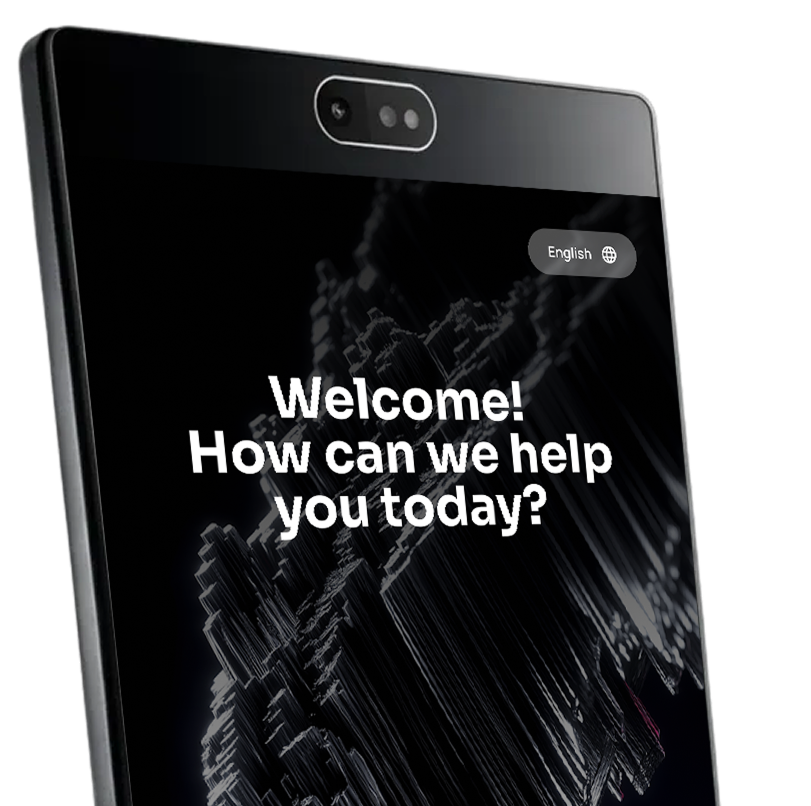
Virtual Front Desk is web-based and compatible with a wide range of devices. Here's what you need to know:
- Recommended device: The Neat Frame offers the best experience.
- Other supported devices: iPads, Android tablets, and Windows computers also work great.
- Minimum computer requirements: A recent, high-performance computer capable of running the latest version of Chrome or Safari smoothly. Lower-end devices may experience reduced video quality, slower performance, browser compatibility issues, or unreliable connectivity.
- Purchasing devices: Virtual Front Desk does not sell devices directly, but can recommend the best options for your setup.
- Neat Frame floor stand: Available through Virtual Front Desk as an authorized reseller — contact the sales team for pricing.
Choosing the right device directly impacts the experience for both your visitors and receptionists. Using underpowered hardware can lead to poor video quality, slow performance, and connectivity issues — all of which create a unprofessional first impression at your front desk. Investing in the right device ensures smooth, reliable, and professional operation from day one.
- Choose a compatible device: Consider the Neat Frame for the best experience, or use an iPad, Android tablet, or Windows computer you already own.
- Check your computer specs: Ensure your device can run the latest version of Chrome or Safari without performance issues.
- Need a floor stand? Contact the Virtual Front Desk sales team — they are an authorized reseller of the Neat Frame floor stand and can provide pricing and details.
- Need a device recommendation? Reach out to the Virtual Front Desk team for personalized hardware guidance.
Can Virtual Front Desk replace Microsoft Teams Displays Virtual Front Desk?
Virtual Front Desk is an excellent solution for your business if you rely on a reception desk or require on-site customer support. It is designed to streamline front-office operations, reduce costs, and address staffing challenges. Whether your visitor traffic is slow or at its peak, Virtual Front Desk ensures seamless support and consistent efficiency.
Choosing the right reception solution directly impacts your customer experience, operational costs, and staff workload. Virtual Front Desk eliminates the need for a full-time on-site receptionist, helping you save on staffing expenses while maintaining professional, reliable support for visitors at all times — regardless of traffic volume or peak hours.
- Assess your business needs: Determine if your business regularly handles walk-in visitors or requires on-site customer support.
- Contact the Virtual Front Desk team: Reach out to learn more about features, pricing, and how the solution can be tailored to your specific business type.
- Request a demo: See Virtual Front Desk in action to evaluate how it fits your front-office workflow before committing.